
1. Adding Subjects and Assigning Them to Classes
Menu: Academics > Subjects Who: Admins, or staff with the Add subjects / Edit subjects permission.
A subject is created once for the whole school and then linked to every class section that teaches it. Linking a subject to a section means every student enrolled in that section takes the subject by default.
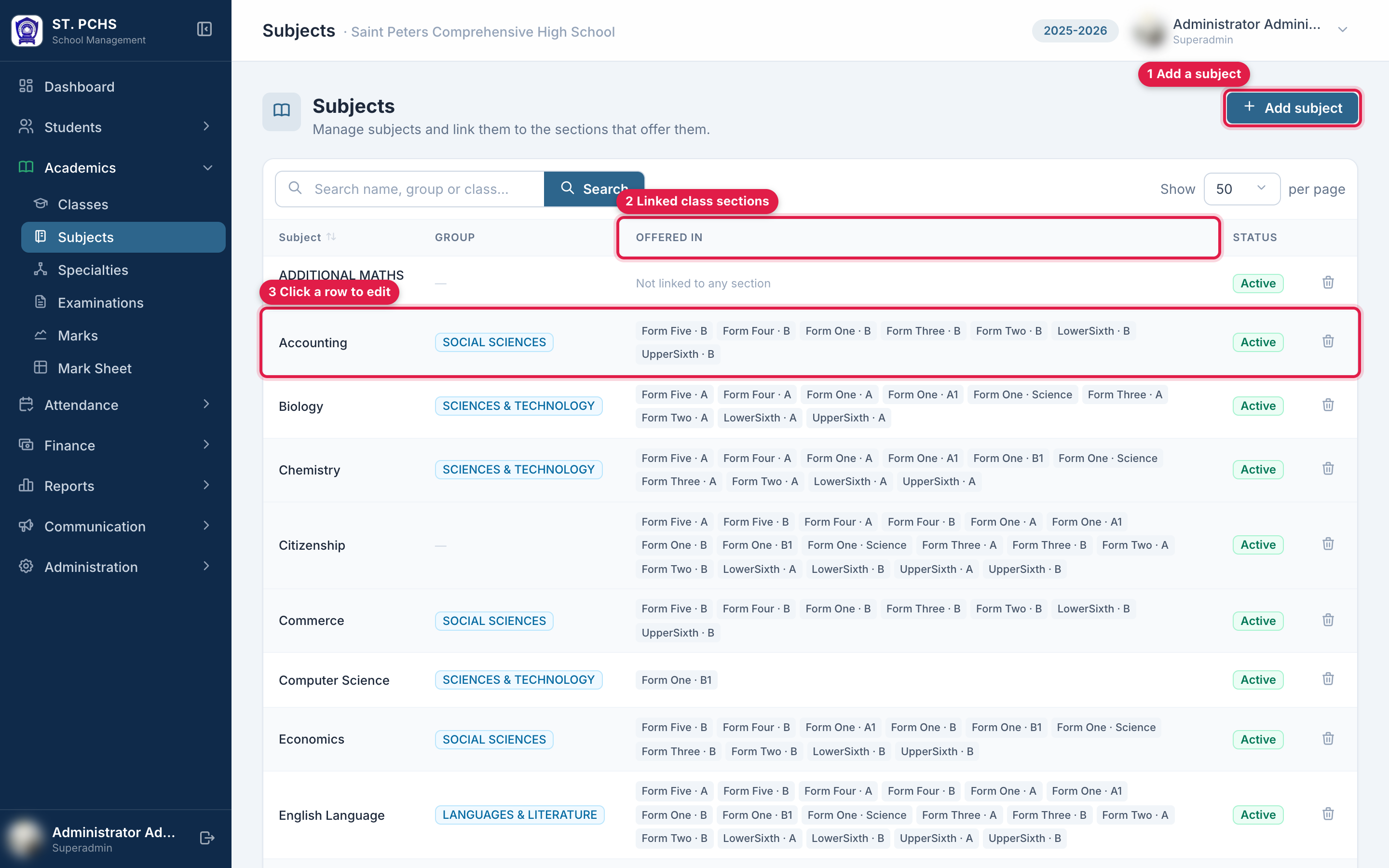
The Subjects list
| Column | Meaning |
|---|---|
| Subject | Name, with the code underneath if one was entered |
| Group | The band the subject prints under on the report card |
| Offered in | The class sections linked to the subject. "Not linked to any section" means no student takes it yet. |
| Status | Active or Inactive |
The search box matches subject name, code, group and class name.
Add a subject
-
Click Add subject.
-
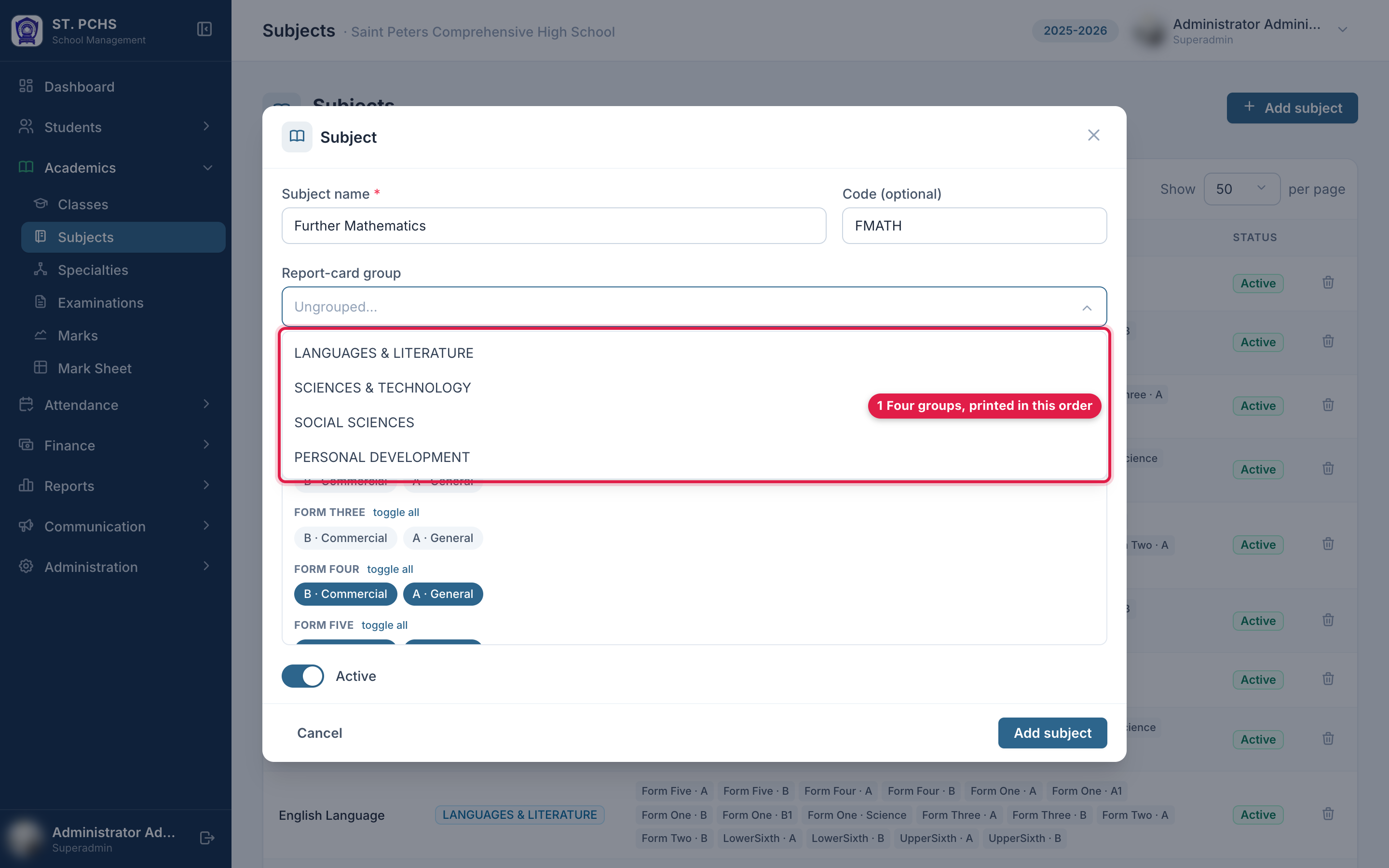
Fill in the form:
Field Required Notes Subject name Yes Must be unique, e.g. Mathematics. Max 80 characters. Code No Short code, e.g. MATH. Max 20 characters. Report-card group No The band the subject prints under on the report card. Leave as Ungrouped if unsure. Offered in sections No Click each section to select it (it turns blue). Active - On by default. -
Select the sections:
- Click a section chip to select or unselect it.
- toggle all next to a class name selects all sections of that class.
- Select all / Clear all at the top selects every section in the school.
-
Click Add subject. A green confirmation "Subject added" appears.
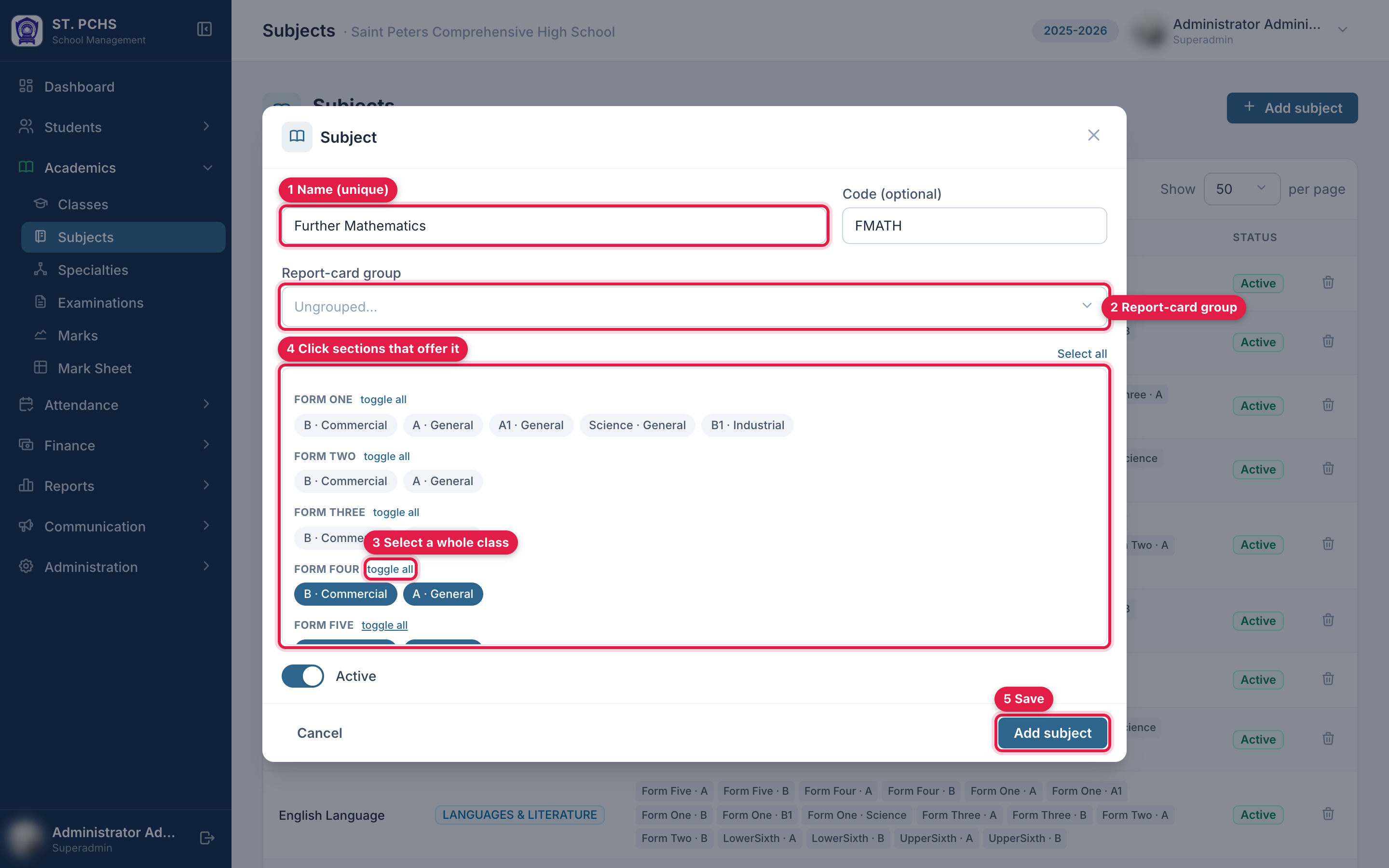
Report-card groups
The Report-card group decides under which heading a subject prints on the report card. There are four fixed groups, and they always print in this order:
- LANGUAGES & LITERATURE
- SCIENCES & TECHNOLOGY
- SOCIAL SCIENCES
- PERSONAL DEVELOPMENT
A subject left as Ungrouped prints at the end under OTHER SUBJECTS. A group with no subjects for that class is not printed.
The group only changes the layout of the card. Marks, coefficients, averages and ranks are the same whatever group a subject is in. The Subjects list shows each subject's group in the Group column, so ungrouped subjects are easy to spot (they show "-").
To change a group, click the subject row, choose the group and click Save changes. The next report cards you generate use the new group.
Edit a subject or change its classes
Click the subject row in the list. The same form opens with the current sections selected. Change what you need and click Save changes.
- Adding a section: all students enrolled in that section now take the subject. Teachers can now be assigned to it in that section.
- Removing a section: the subject disappears from that section's mark entry and report cards.
If the section has specialties, the specialties are updated automatically when you change the linked sections.
Delete a subject
Click the bin icon on the row and confirm. The subject is unlinked from all sections.
A subject that already has marks recorded cannot be deleted. The message shows how many marks exist. This protects the term's mark history. Set the subject to Inactive instead, or remove the marks first.
Common questions
The subject does not appear when assigning a teacher. It is not linked to that section. Edit the subject and select the section.
A few students in the section do not take this subject. Keep the section linked and exempt those students. See Exempting Students from Subjects.
Next step: Adding Teachers and Assigning Them to Class Subjects