
3. Exams and Mark-Entry Deadlines
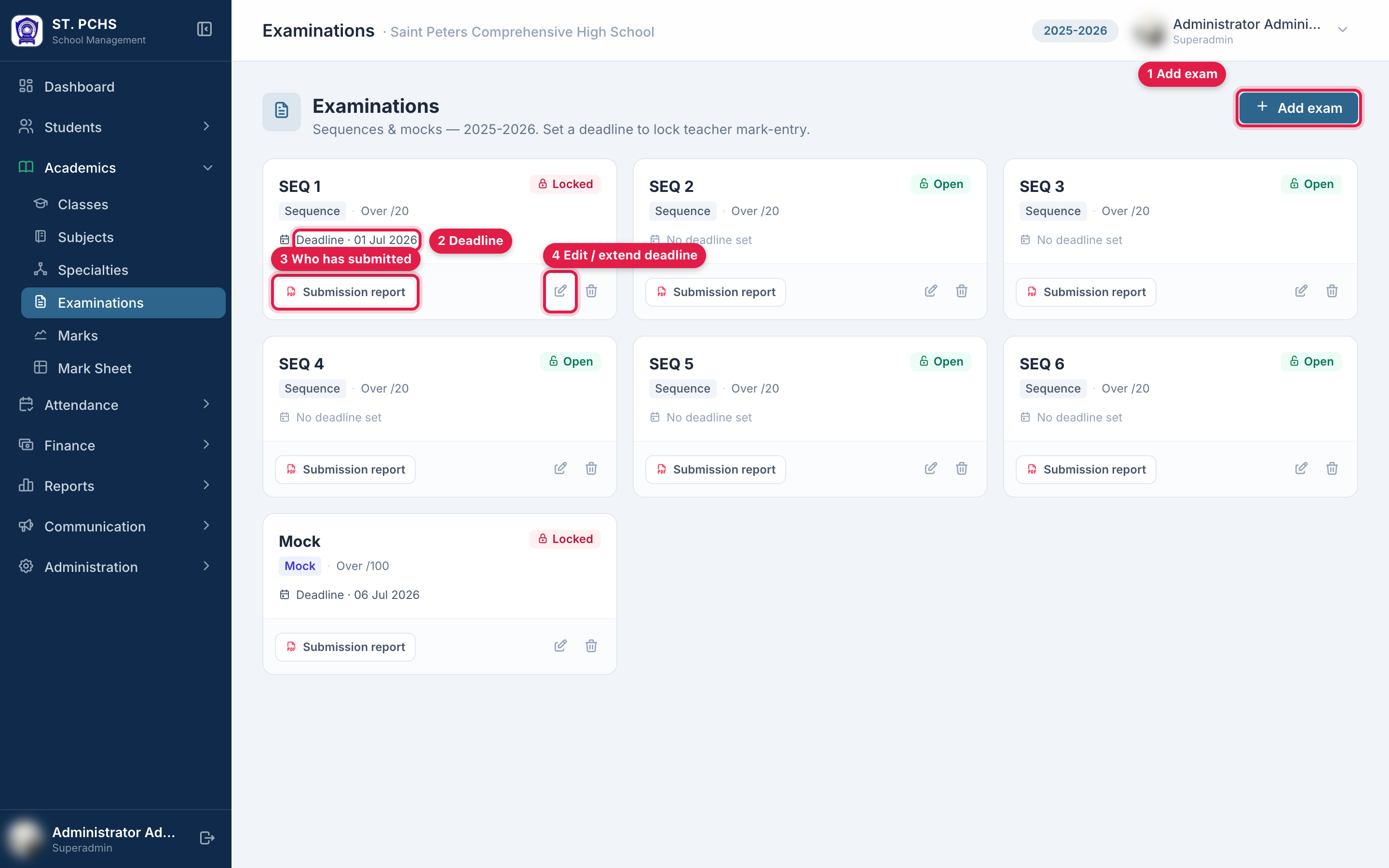
Menu: Academics > Examinations Who: Admins create, edit and delete exams. Teachers with an assignment can view the list to see deadlines.
Teachers enter marks against an exam. Each exam has a deadline. After the deadline, teachers can no longer save marks for that exam.
Exam types
| Type | Marked out of | Sequence number |
|---|---|---|
| Sequence | /20 | Required, 1 to 6. Report cards use it to place the exam in a term. |
| Mock | /100 | Not used |
Only one exam per sequence number is allowed in a year.
Create an exam
-
Click Add exam (top right).
-
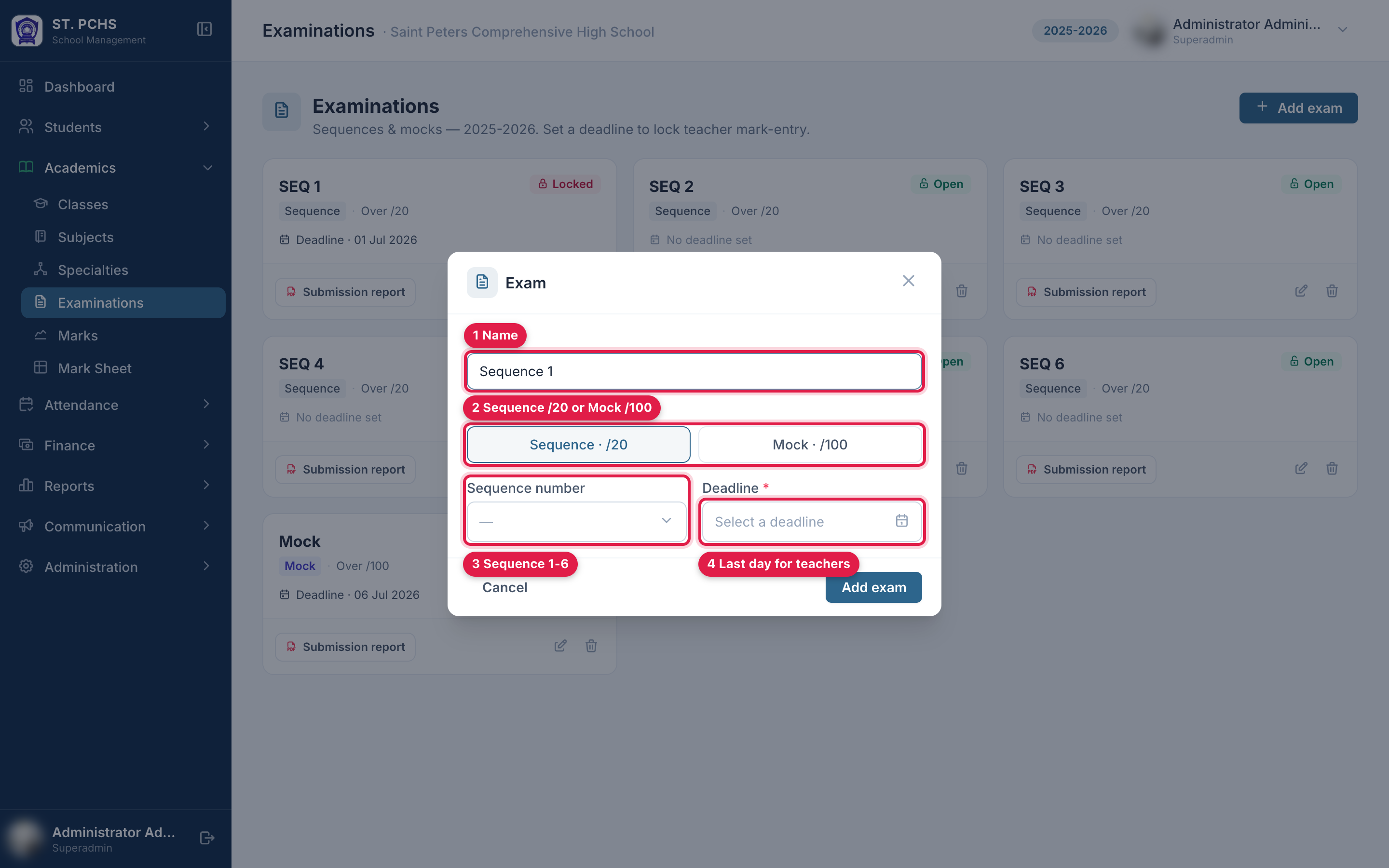
Fill in the form:
Field Required Notes Name Yes e.g. Sequence 1. Must be unique within the year. Type Yes Sequence · /20 or Mock · /100 Sequence number For sequences Sequence 1 to 6 Deadline Yes Last day teachers can enter marks -
Save. The exam is created for the active academic year.
How the deadline works
- Teachers can enter and change marks up to the end of the deadline day. Marks are locked from midnight onward.
- A locked exam shows a 🔒 next to its name in the Marks exam list. The marks table then shows "Locked - deadline passed", and the inputs and Save button are hidden.
- Admins are not locked. Staff with Enter / override any marks can still enter and correct marks after the deadline.
- To reopen entry, edit the exam and move the deadline to a later date. Teachers can save again right away.
Editing an exam that already has marks
Marks are stored on the exam's scale and sequence. Once an exam has marks:
- The type cannot be changed (/20 to /100 would rescale the marks).
- The sequence number cannot be changed (it would move the marks to another term).
- Name and deadline can still be changed.
The form shows a note explaining this. To change type or number, create a new exam instead.
Delete an exam
Deleting an exam also deletes all its marks. The confirmation dialog warns you. This cannot be undone.
Submission report
On each exam card, Submission report opens a PDF that shows for every class and section:
- how many subjects have marks in and how many are pending
- the number of marks entered against the number expected (exempted students are not expected)
- a per-teacher breakdown with a submission rate
Use it before and after the deadline to follow up with teachers who have not submitted.
Next step: Exempting Students from Subjects