
5. Entering Marks (Teachers)
Menu: Academics > Marks Who: Teachers, for the class subjects assigned to them. Admins with Enter / override any marks can enter marks for every class and subject.
Before you start
- You only see the classes and subjects the administration assigned to you. If one is missing, ask the administration to add it to your access.
- Check the deadline under Academics > Examinations. After the deadline day you can no longer save.
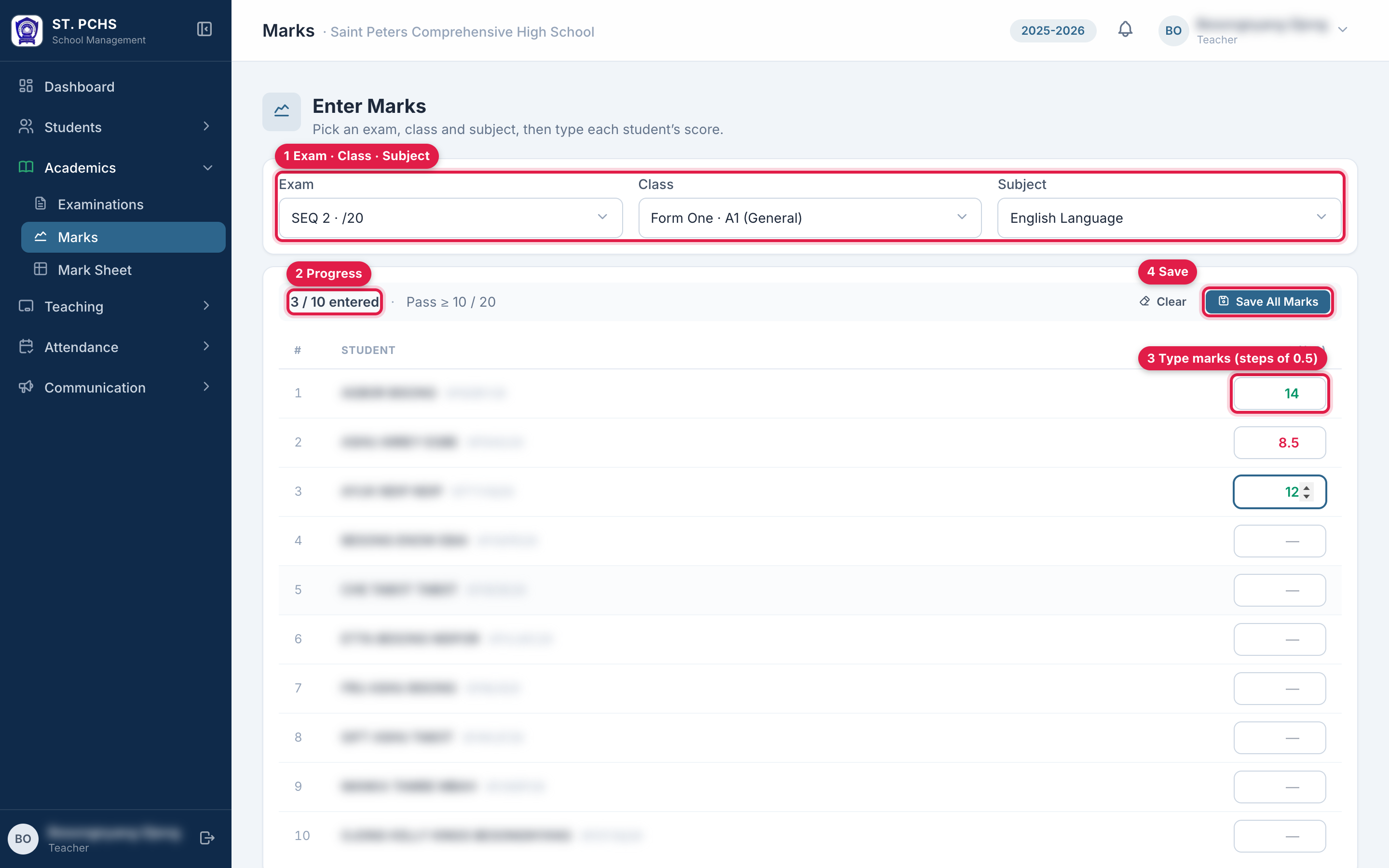
Enter marks
- Open Academics > Marks.
- Choose the three filters at the top:
- Exam, e.g. Sequence 1 · /20. A 🔒 means the deadline has passed.
- Class: the class and section, e.g. Form 3 · A (General).
- Subject: only your subjects for that class are listed.
- The student list loads. Students exempted from the subject are not listed.
- Type each student's mark in the Marks column.
- Click Save All Marks.
Rules for a mark
- Between 0 and the exam maximum: /20 for sequences, /100 for mocks.
- In steps of 0.5, e.g. 12, 12.5. A value like 12.3 is refused.
- An invalid mark turns the box red, and saving is blocked until it is fixed.
- Marks at or above the pass mark (10/20 or 50/100) show in green. Marks below it show in red.
The toolbar shows your progress, e.g. "35 / 42 entered".
Saving and correcting
- You can save part of the list and come back later. Saved marks load again when you reopen the same exam, class and subject.
- To correct a mark, change it and click Save All Marks again. Unchanged marks are not touched. If nothing changed you see "No changes".
- Clearing a mark: empty the box and save. The app asks you to confirm, because the saved mark will be deleted. A student with no mark gets 1/20 on the report card.
- Clear in the toolbar empties every box on screen. Nothing is deleted until you click Save.
Every save is recorded in the activity log with your name and the marks changed.
After the deadline
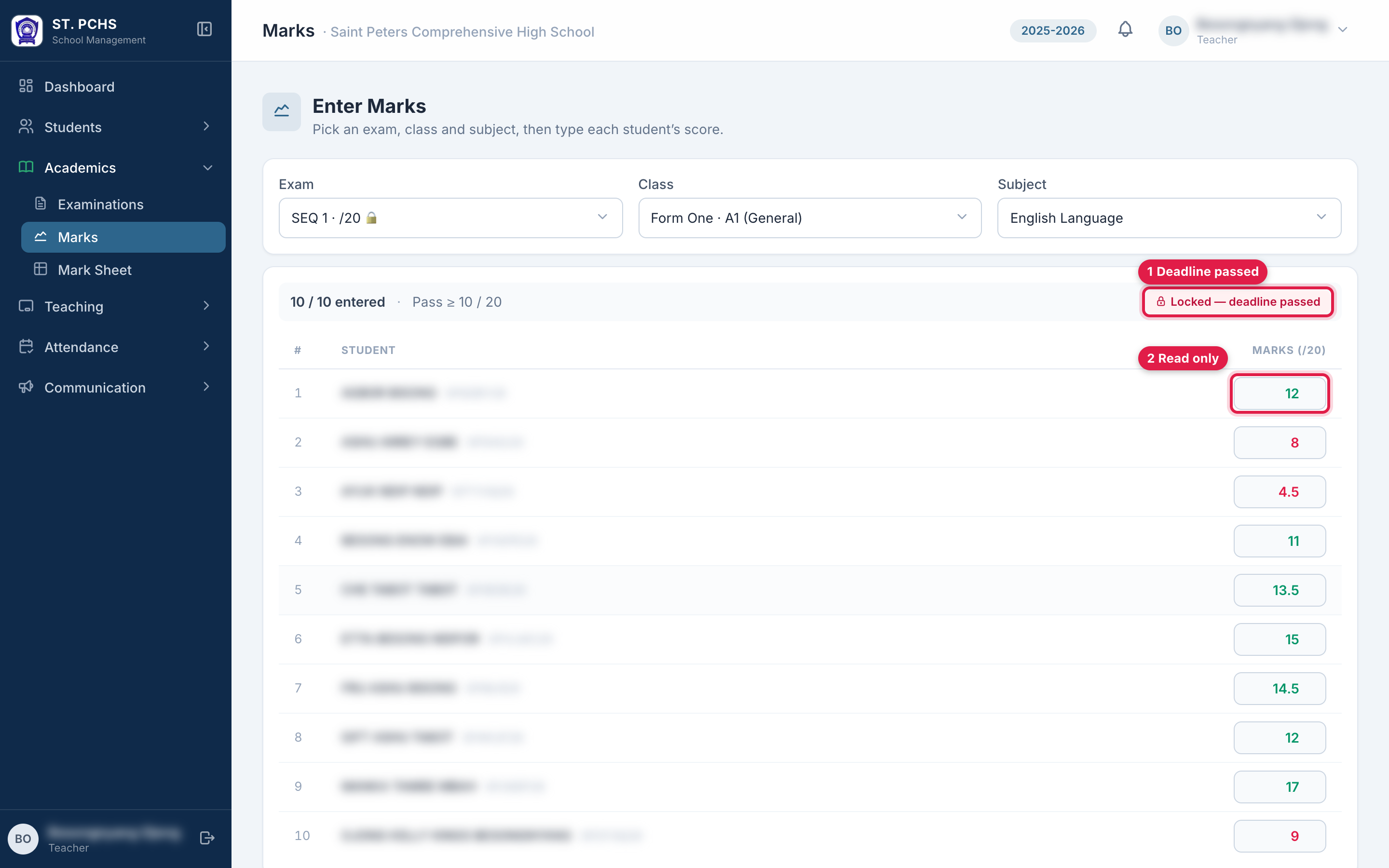
When the exam is locked:
- The table shows "Locked - deadline passed".
- The boxes are greyed out and the Save button is hidden.
- You can still view the marks.
To make a late correction, ask the administration. They can either enter the mark themselves or extend the deadline.
On a phone
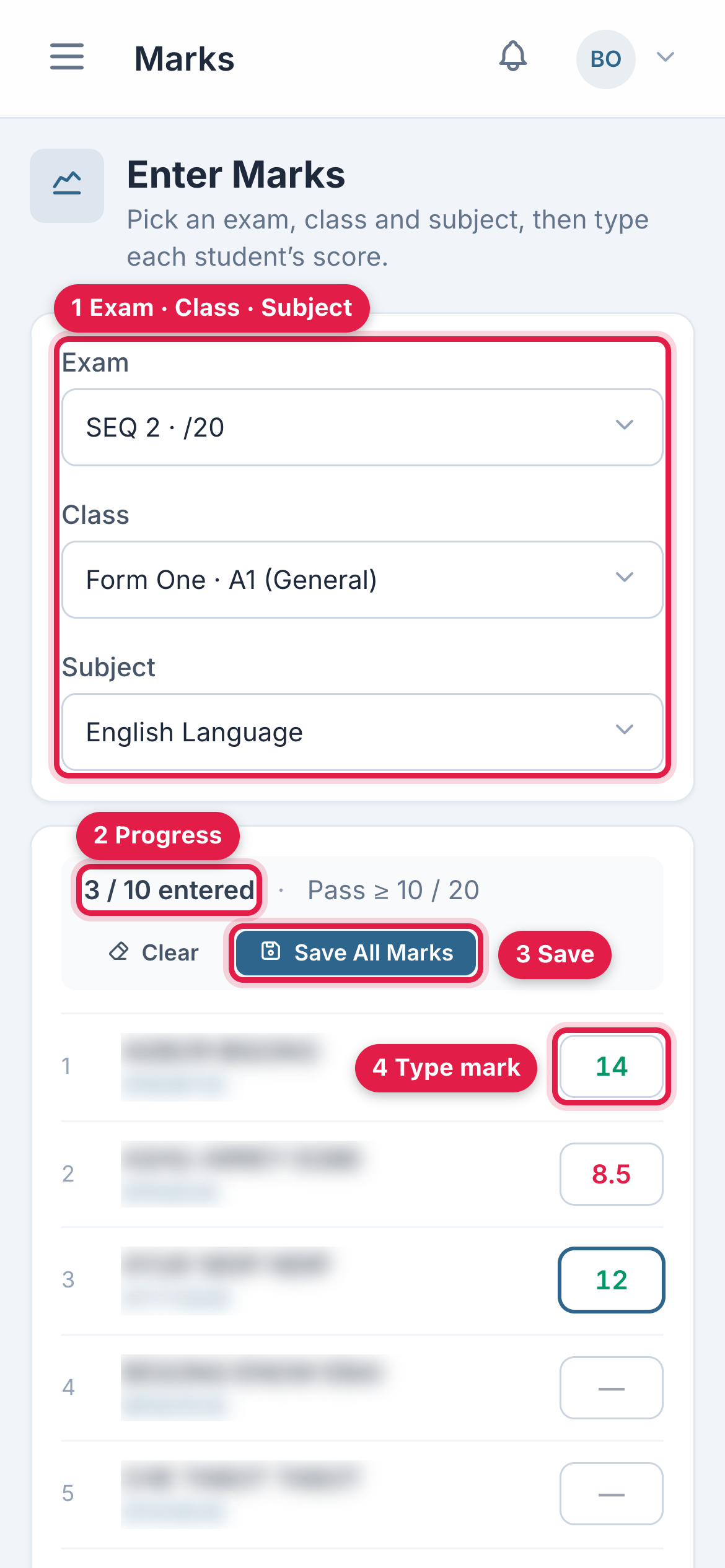
Marks can be entered from a phone browser. Log in as usual and open the menu (☰, top left), then Academics > Marks. The steps and rules are the same as on a computer. Only the layout changes:
- The three filters, Exam, Class and Subject, are stacked one above the other.
- The counter ("3 / 10 entered") is shown above the list, with Clear and Save All Marks underneath it.
- Each student is one row: name and matricule on the left, the mark box on the right. Tapping a box opens the number keypad.
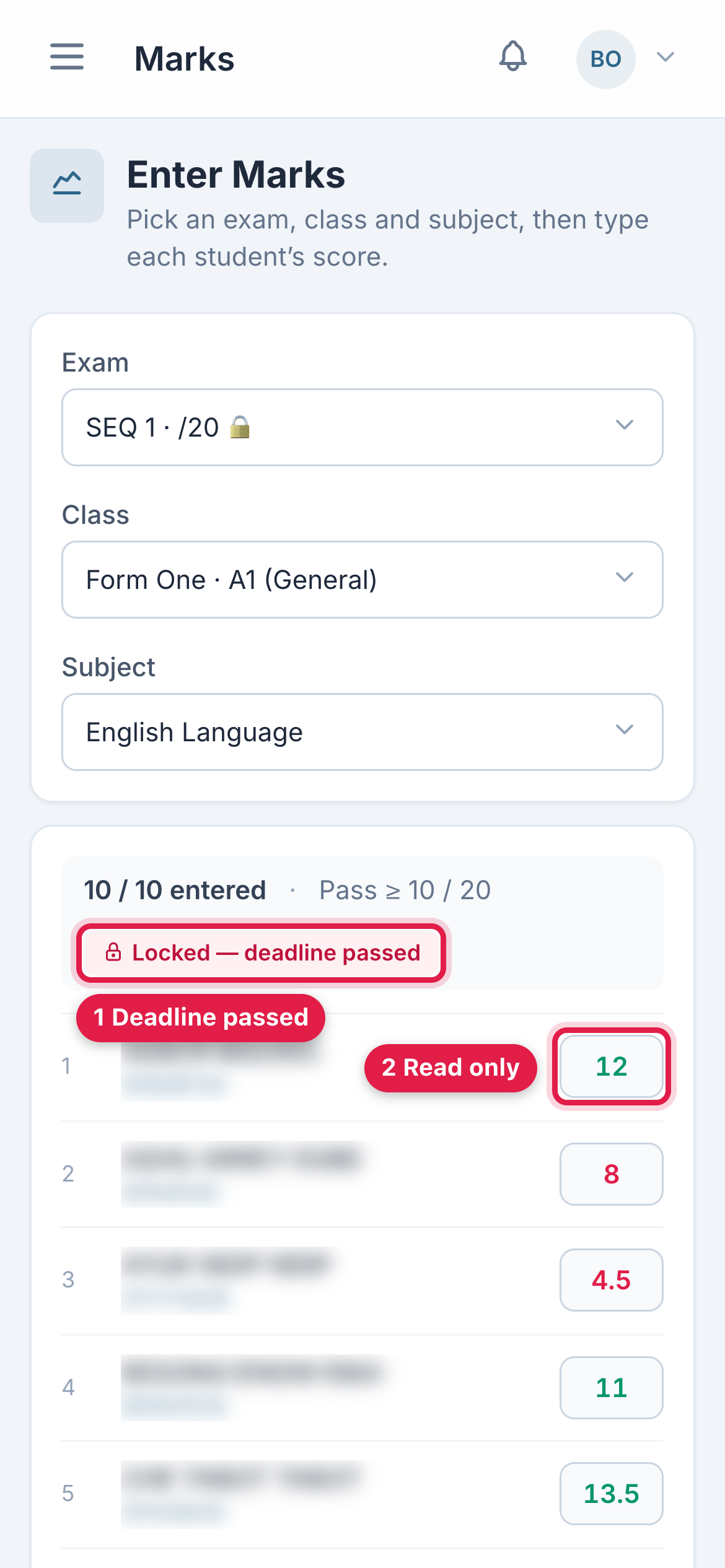
- When the deadline has passed, "Locked - deadline passed" replaces the buttons and the boxes are read only.
Tap Save All Marks before you leave the page or lock the phone. Marks that have only been typed in are not saved.
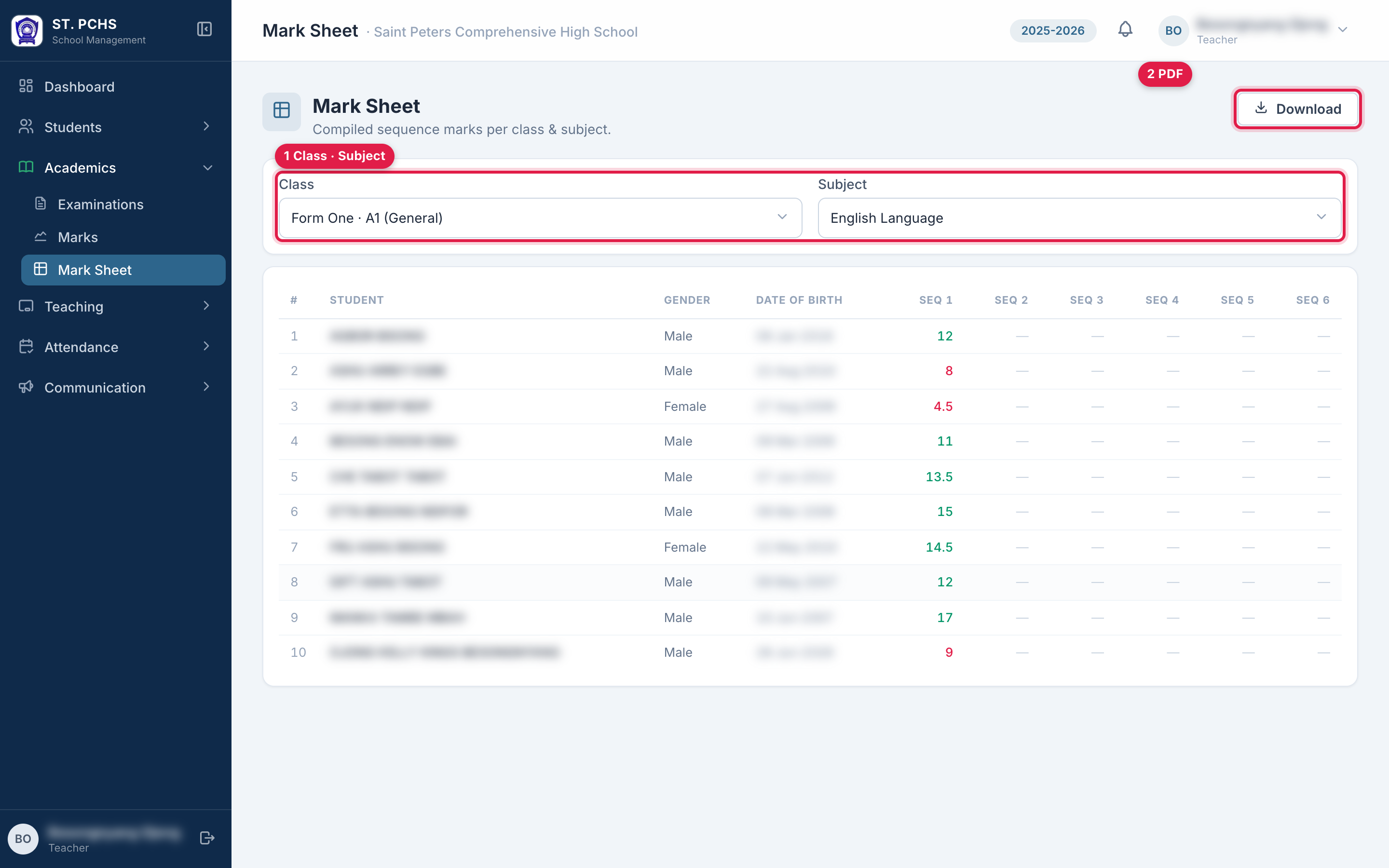
Mark Sheet
Menu: Academics > Mark Sheet
Choose a class and subject to see all sequence marks for that subject side by side. Download creates a PDF. Class masters can see every subject of their section here.
My Classes
Menu: Teaching > My Classes
Lists the classes you teach or are class master of this year. Click View roster to see the students and download the class list.
Common problems
| Message or symptom | Cause | Solution |
|---|---|---|
| Marks menu is missing | No subject assigned to you this year | Ask the administration |
| Subject not in the list | Not assigned to you for that class | Ask the administration |
| A student is missing | The student is exempted from the subject | Ask the administration to check Subject Assignments |
| "The exam deadline has passed - marks are locked." | The deadline day is over | Ask the administration |
| "Marks must be 0-20 in steps of 0.5." | A mark is out of range or not a .0/.5 value | Correct the red box |