
4. Exempting Students from Subjects
Menu: Students > Subject Assignments Who: Admins, or staff with the Assign / exempt subjects permission.
Every enrolled student takes all subjects of their section by default. Use this page to switch a student off for a subject they do not take. An exempted student:
- does not appear in the teacher's mark entry list for that subject
- is not counted as "expected" in the submission report
- gets no mark and no default mark for that subject on the report card
Why this matters
On report cards, a student who is not exempt and has no mark gets 1/20 for that subject. This only applies to sequences the section has actually sat. If a student does not take a subject and is not exempted, their average will drop. Set exemptions before report cards are generated.
Exempt individual students
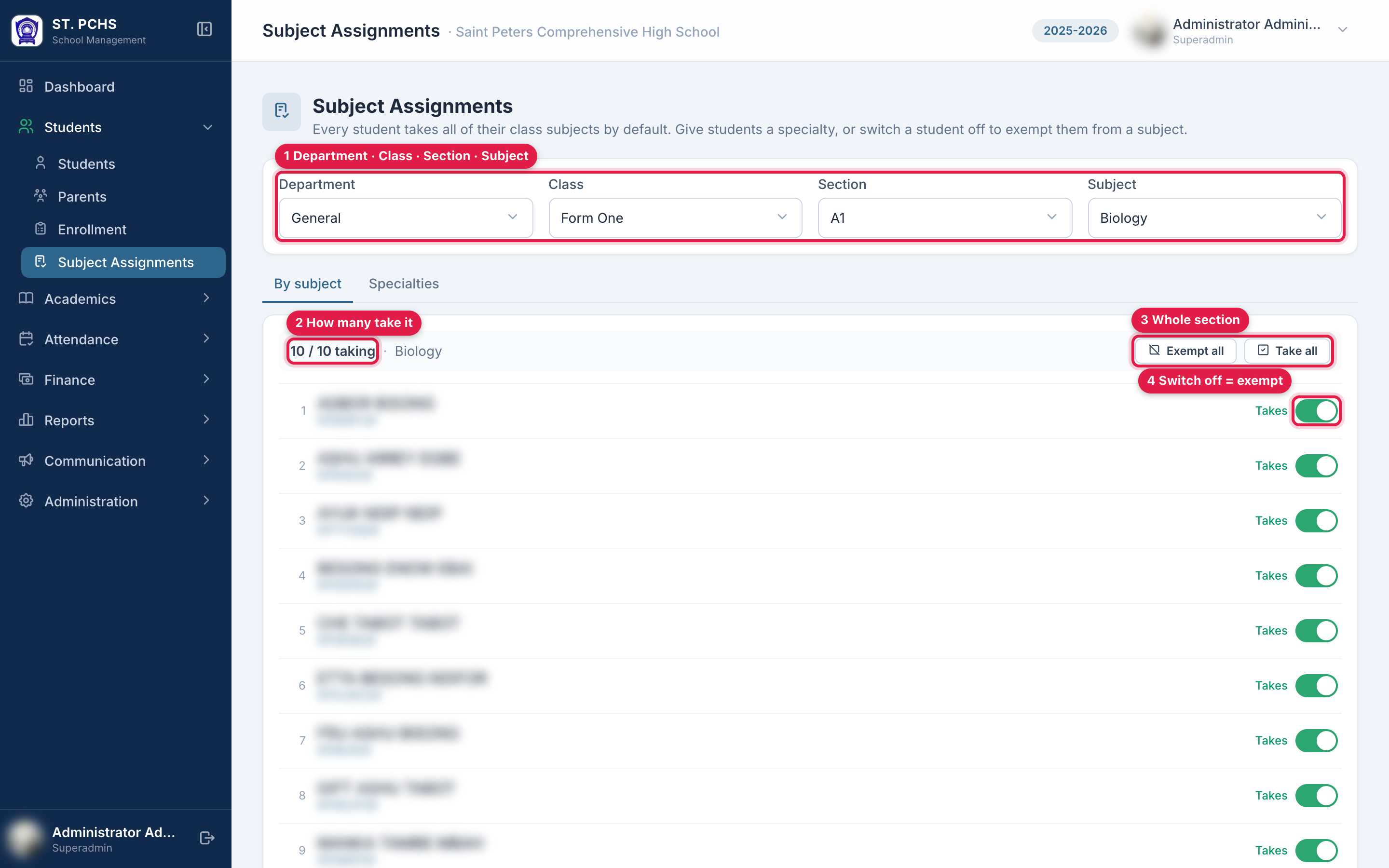
- Select Department, Class, Section and Subject at the top.
- The By subject tab lists every student with a switch:
- Green, label Takes: the student takes the subject.
- Grey, label Exempt: the student is exempted.
- Click the switch to change it. It saves straight away and shows "Student exempted from this subject" or "Student now takes this subject".
The toolbar shows the count, e.g. "38 / 42 taking".
Exempt or include the whole section
- Exempt all switches every student off. Use this for a subject only a few students take, then switch those few back on.
- Take all switches every student back on.
Both ask for confirmation. Students whose specialty decides the subject are left as they are, and the message says how many were skipped.
Students with a specialty
If the section has specialties (for example Science and Arts), a student's specialty can decide some subjects. The status label then shows one of these:
| Label | Meaning | What you can do |
|---|---|---|
| Takes / Exempt | Common subject, not decided by the specialty | Switch freely |
| Optional · picked / Optional | An optional subject of the student's specialty | Switch to pick or unpick it. The specialty limits how many can be picked. |
| Not in specialty (greyed) | The subject belongs to another specialty | The switch is locked. Change the student's specialty instead. |
Give students a specialty
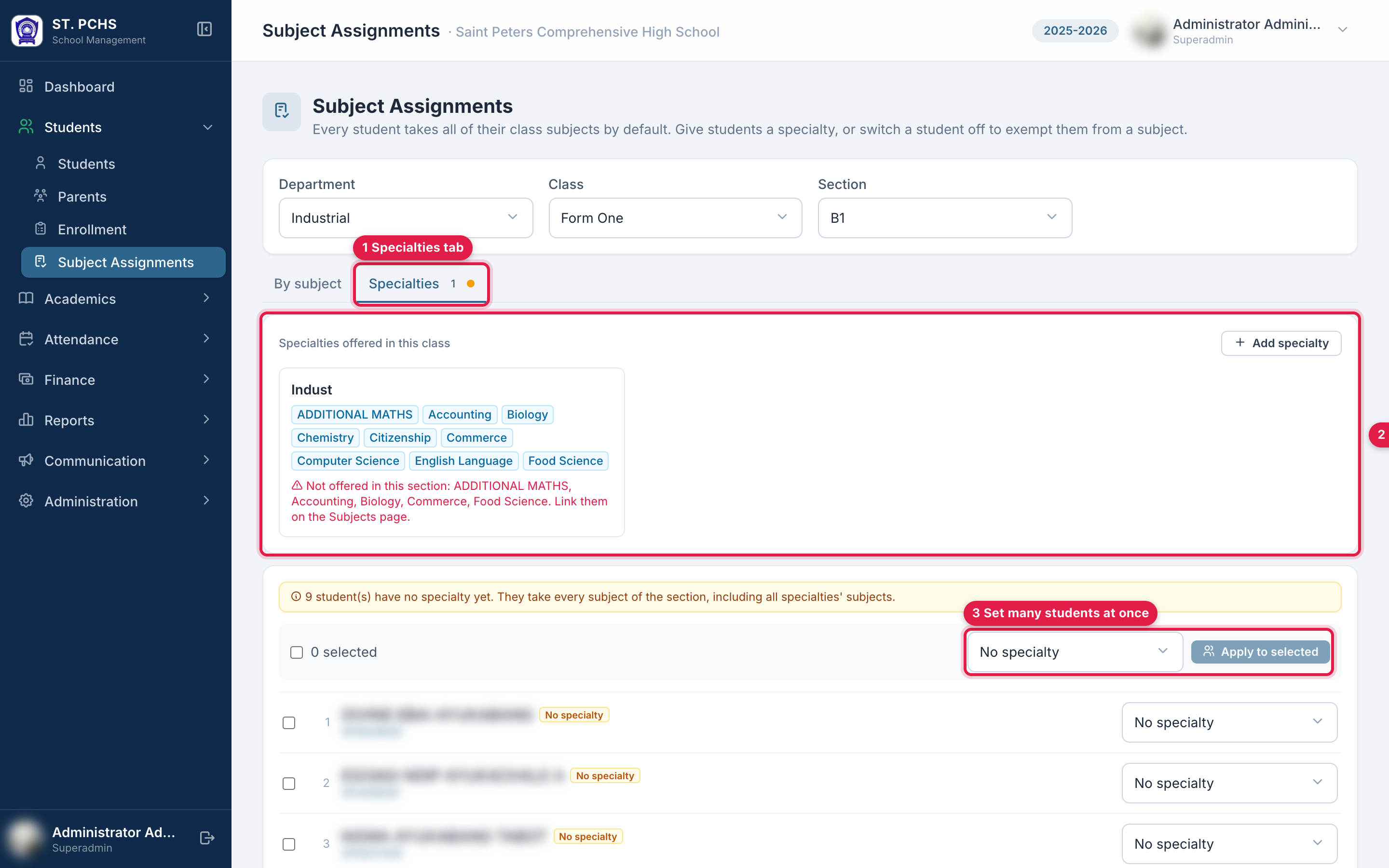
- Select the section and open the Specialties tab. An amber dot means some students have no specialty yet.
- To set many students at once, tick them, choose the specialty and click Apply to selected.
- To set one student, choose the specialty in their row.
Changing a student's specialty clears their optional picks, because the new specialty has a different set of optional subjects.
If the class has no specialty yet, click Add specialty. Give it a name and the number of optional subjects a student may pick. Then mark each subject as Common, Compulsory or Optional. Leave subjects every student takes as Common.
Common questions
A student was exempted after the teacher entered a mark. The old mark stays saved but the student no longer appears in mark entry. An admin can switch the student back on, clear the mark in Marks, and exempt the student again.
The teacher says a student is missing from the marks list. The student is exempted from that subject. Check this page.
Next step: Entering Marks (Teachers)