
2. Adding Teachers and Assigning Them to Class Subjects
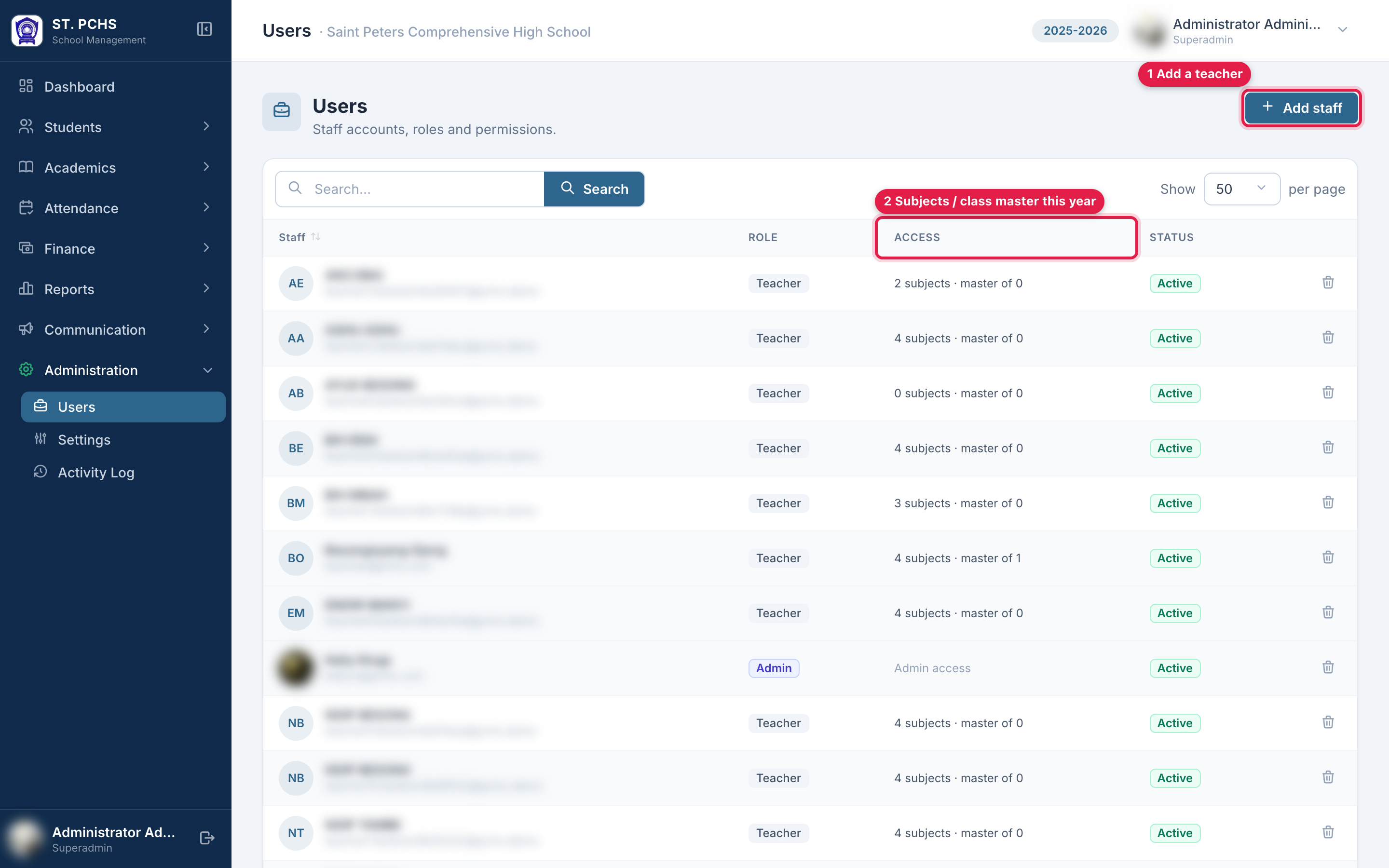
Menu: Administration > Users Who: The main administrator account only (the school account that manages staff and settings). Staff created with the Admin role cannot see this page.
A teacher account has two parts: the profile (who they are and how they log in) and their access (which class subjects they teach and which sections they are class master of). A teacher can only enter marks for the class subjects assigned to them.
Before you start
The subjects must already be linked to the sections (see Adding Subjects and Assigning Them to Classes). The subject dropdown only lists subjects offered in the chosen section.
Add a teacher
-
Click Add staff.
-
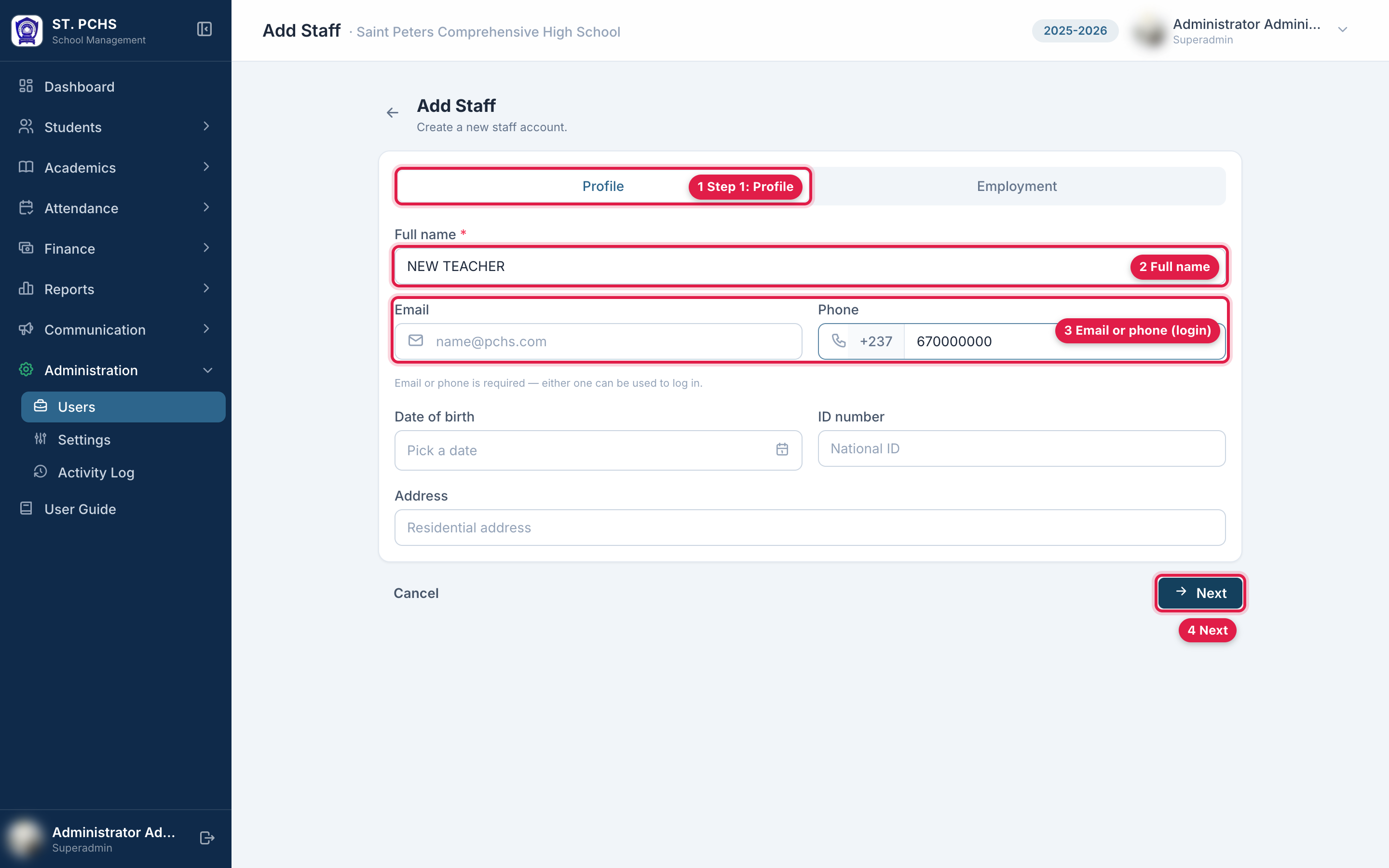
Step 1 - Profile tab:
Field Required Notes Full name Yes Email One of the two Can be used to log in. Must be unique. Phone One of the two +237 number. Can be used to log in. Must be unique. Date of birth, ID number, Address No Click Next. If the name is empty, or both email and phone are empty, a message tells you what is missing and you stay on this step.
-
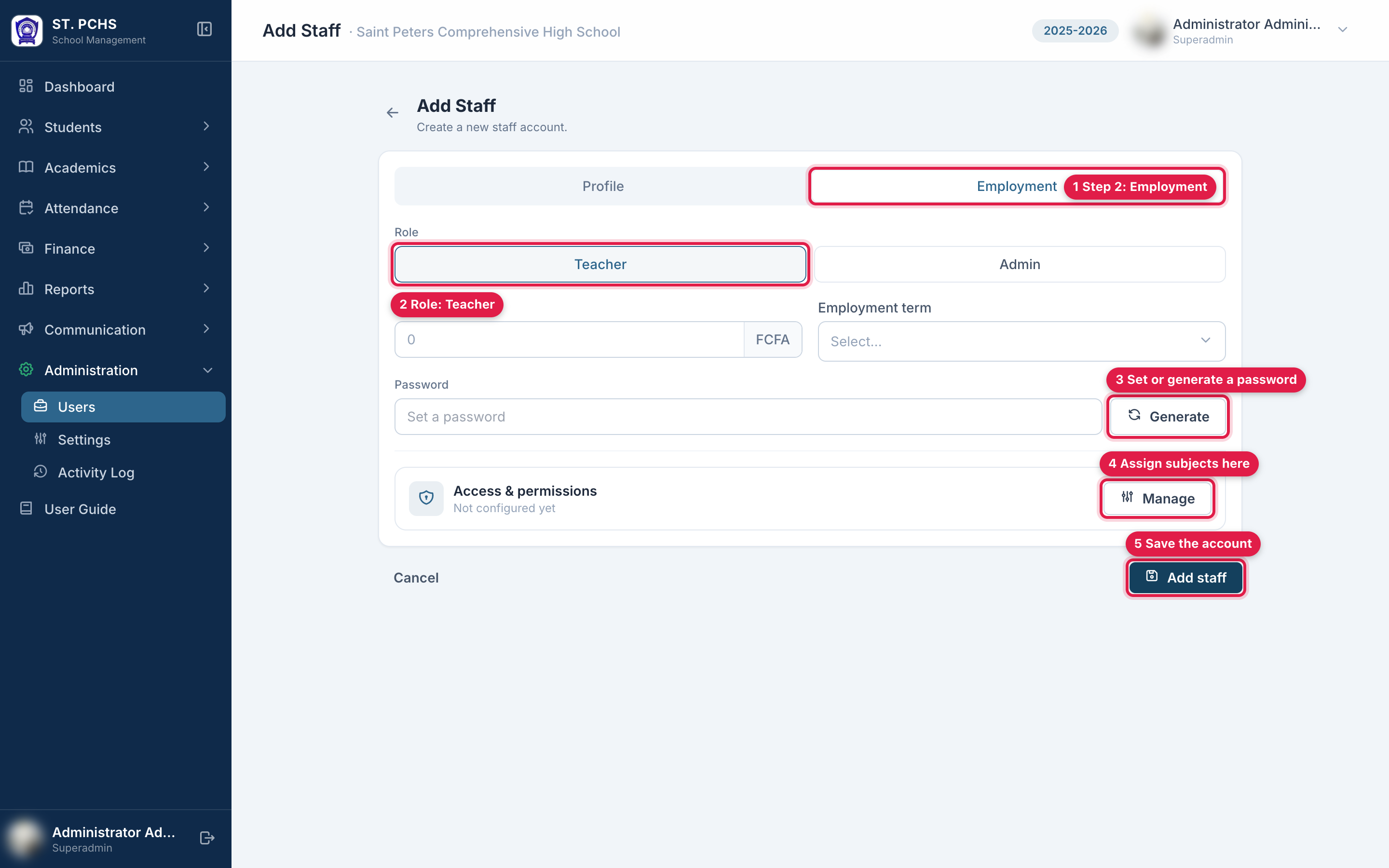
Step 2 - Employment tab:
Field Required Notes Role Yes Choose Teacher. Salary (FCFA), Employment term No Stored for the current academic year only. Password Yes, for a new account At least 6 characters. Generate creates one and shows it in a notification. Write it down and give it to the teacher. -
Under Access & permissions, click Manage. The access drawer opens (see the next section).
-
Click Add staff to create the account. You can go back to the Profile tab at any time before that; nothing is saved until Add staff.
When you edit an existing staff member, both tabs show Save changes instead, so you can save from either tab.
Assign class subjects (Teaching)
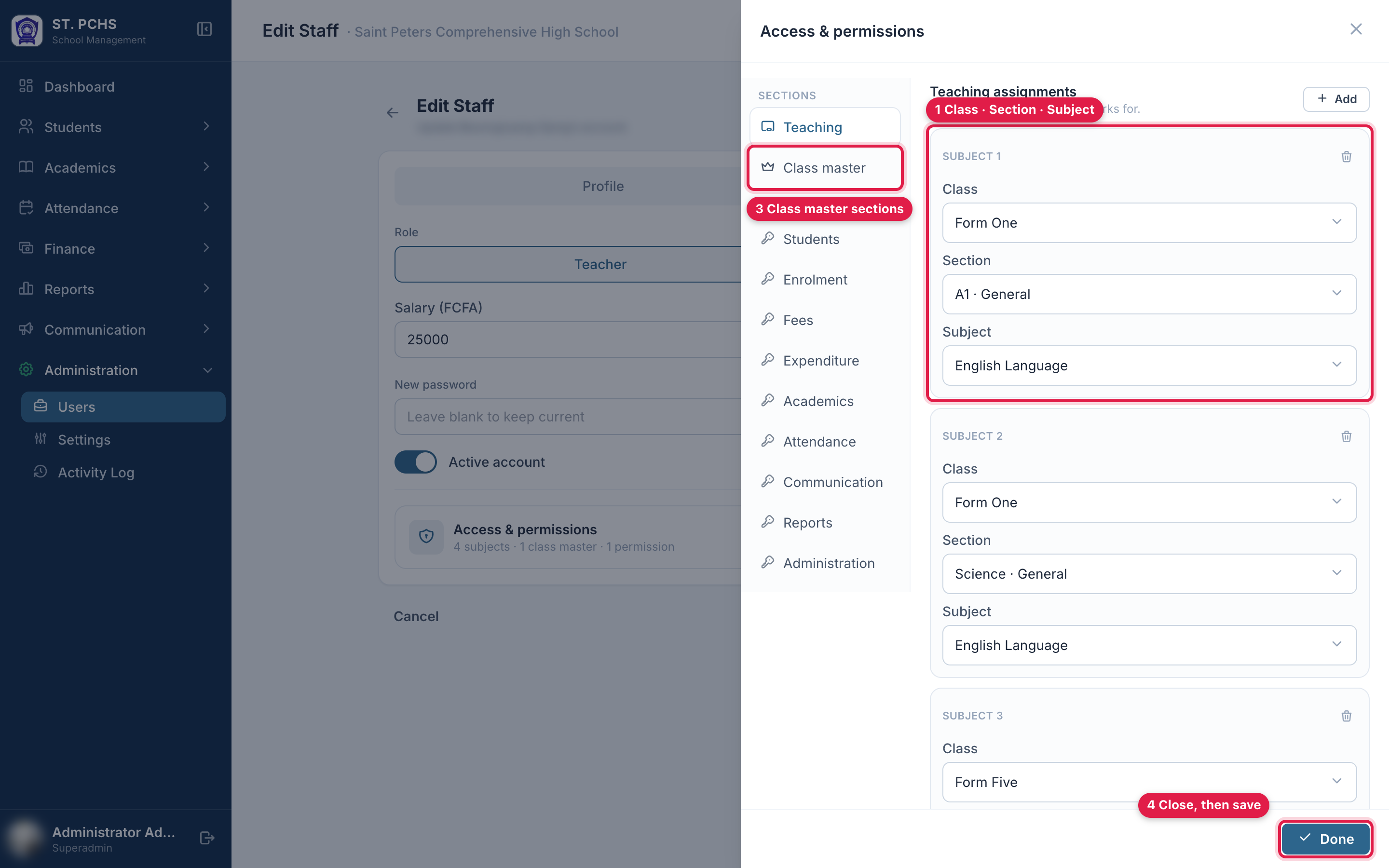
In the drawer, the Teaching section is open by default.
- Click Assign a subject to teach (or Add for the next one).
- For each card choose, in order:
- Class, e.g. Form 3
- Section, e.g. A · General
- Subject: only subjects linked to that section are listed
- Repeat for every class subject the teacher teaches. Use Add another subject at the bottom of the list.
- Remove a wrong card with the bin icon.
- Click Done, then Add staff (bottom of the Employment tab) to save the account.
Cards with an empty field are ignored when saving. If the same section and subject are added twice, only one is kept.
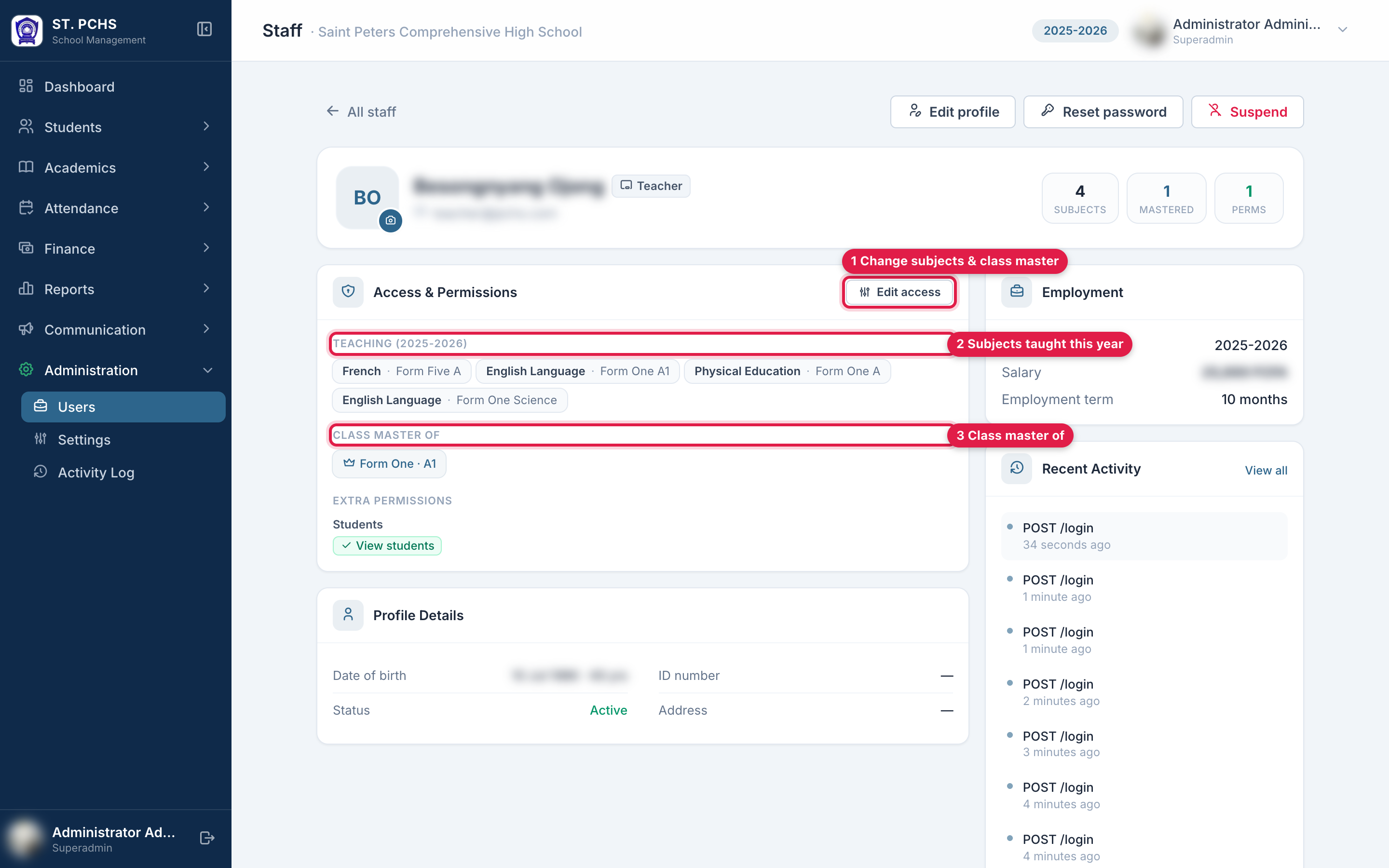
The summary under Access & permissions shows what is set, e.g. "4 subjects · 1 class master".
Make a teacher class master
- In the access drawer, click Class master.
- Use the search box to find the section and switch it on.
- Click Done and save.
Each section has one class master per year. Switching a section on for this teacher replaces the previous class master of that section.
A class master can see the mark sheet for the whole section and the class performance page. To enter marks, the teacher still needs a teaching assignment for that subject. To record attendance, the teacher needs access under Attendance > Access (see Attendance). The drawer text "Full attendance & marks" overstates this.
Permissions (optional)
When editing an existing teacher, the drawer also lists permission groups (Students, Academics, Attendance and so on). Use them to give a teacher extra tasks, for example Assign / exempt subjects. Leave them off for a normal teacher.
Change a teacher's assignments later
Two ways:
- Users > click the teacher > Edit access. This saves the access straight away without changing the profile.
- Users > edit the teacher > Employment > Manage, then Save changes.
Saving replaces the teacher's full list of assignments for the current year. Anything you remove from the list is removed from the teacher. Marks already entered are not deleted.
Things to know
- Assignments belong to the active academic year. When a new year is activated, last year's teaching assignments and class masters are copied into the new year if it has none yet. Review them at the start of each year.
- Two teachers on the same class subject: both can enter marks. Report cards and the submission report name the teacher who was assigned first.
- A teacher leaving: a teacher with marks or other records cannot be deleted. Suspend the account instead, so they can no longer log in and their history is kept.
- What the teacher sees: once they have at least one assignment, the teacher sees My Classes, Examinations (read only, to see deadlines), Marks and Mark Sheet.
Next step: Exams and Mark-Entry Deadlines