
6. Attendance
Menu: Attendance > Record, Report, Access, Term Dates
Attendance is recorded per class section, per day and per session. Each student is marked Present, Absent or Excused. The records feed the attendance report and the absence boxes on term and annual report cards.
| Task | Who | Menu |
|---|---|---|
| Give a teacher the right to record a class | Admin | Attendance > Access |
| Record attendance | Admins (any class), granted staff (their classes) | Attendance > Record |
| Month overview | Admin | Attendance > Record > Month overview |
| Set periods per session | Admin | Attendance > Record > Periods |
| Attendance report | Admin | Attendance > Report |
| Set term dates | Admin | Attendance > Term Dates |
Setup order
Do this once at the start of each academic year:
- Term dates - without them, report cards leave the absence boxes blank.
- Periods - how many periods a full day, a morning and an afternoon count for.
- Access - which staff may record which classes.
When a new year is activated, the previous year's access grants and period settings are copied over where the new year has none. Term dates are not copied and must be set every year.
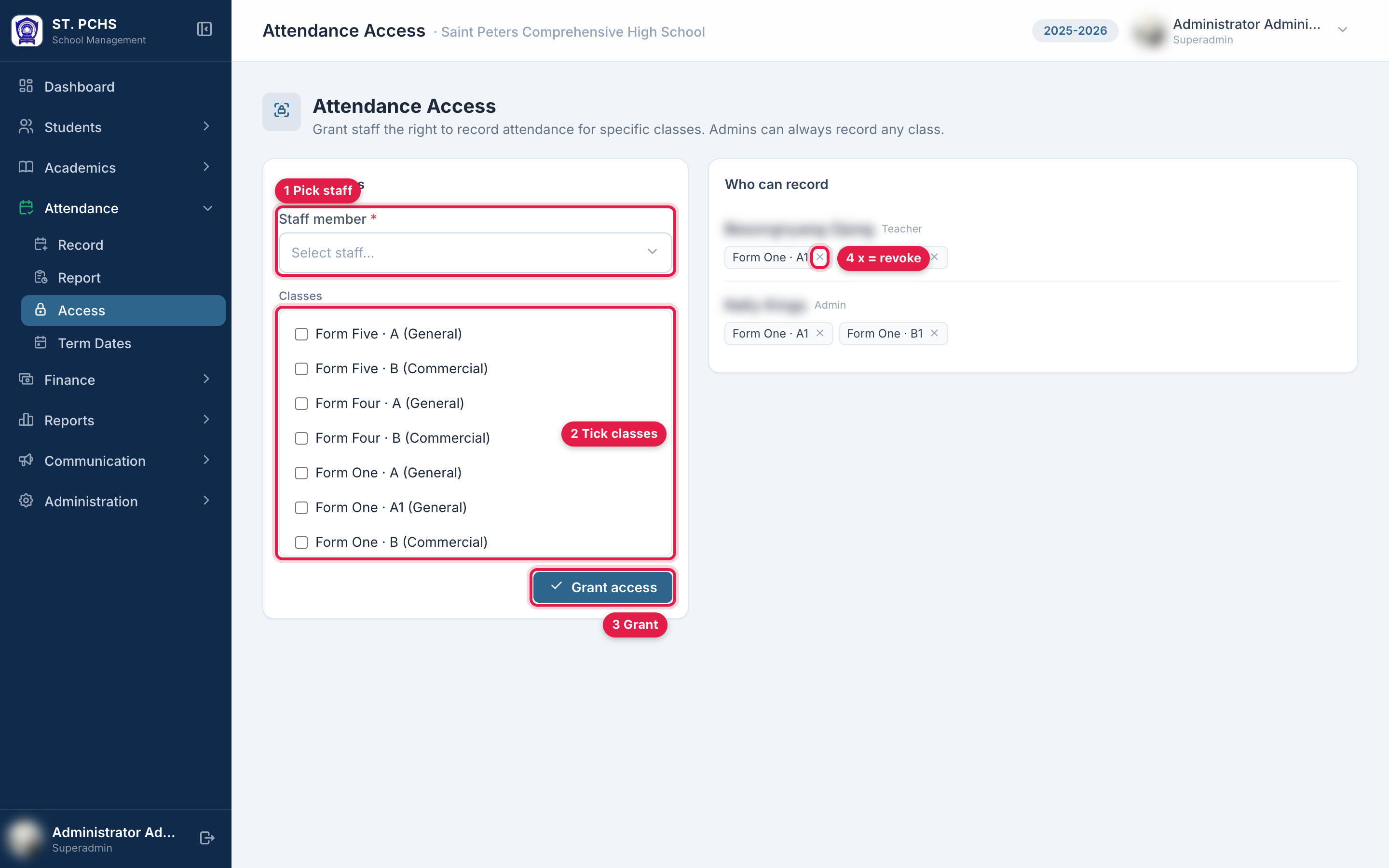
Give staff access to record attendance
Menu: Attendance > Access
Admins can always record every class. Teachers and other staff can only record the classes granted to them here. Being class master of a section does not grant attendance access on its own.
- Choose the Staff member.
- Tick the Classes they may record.
- Click Grant access.
The Who can record list shows every staff member with access and their classes. Click the x on a class to revoke it. Access applies to the current academic year only.
Record attendance
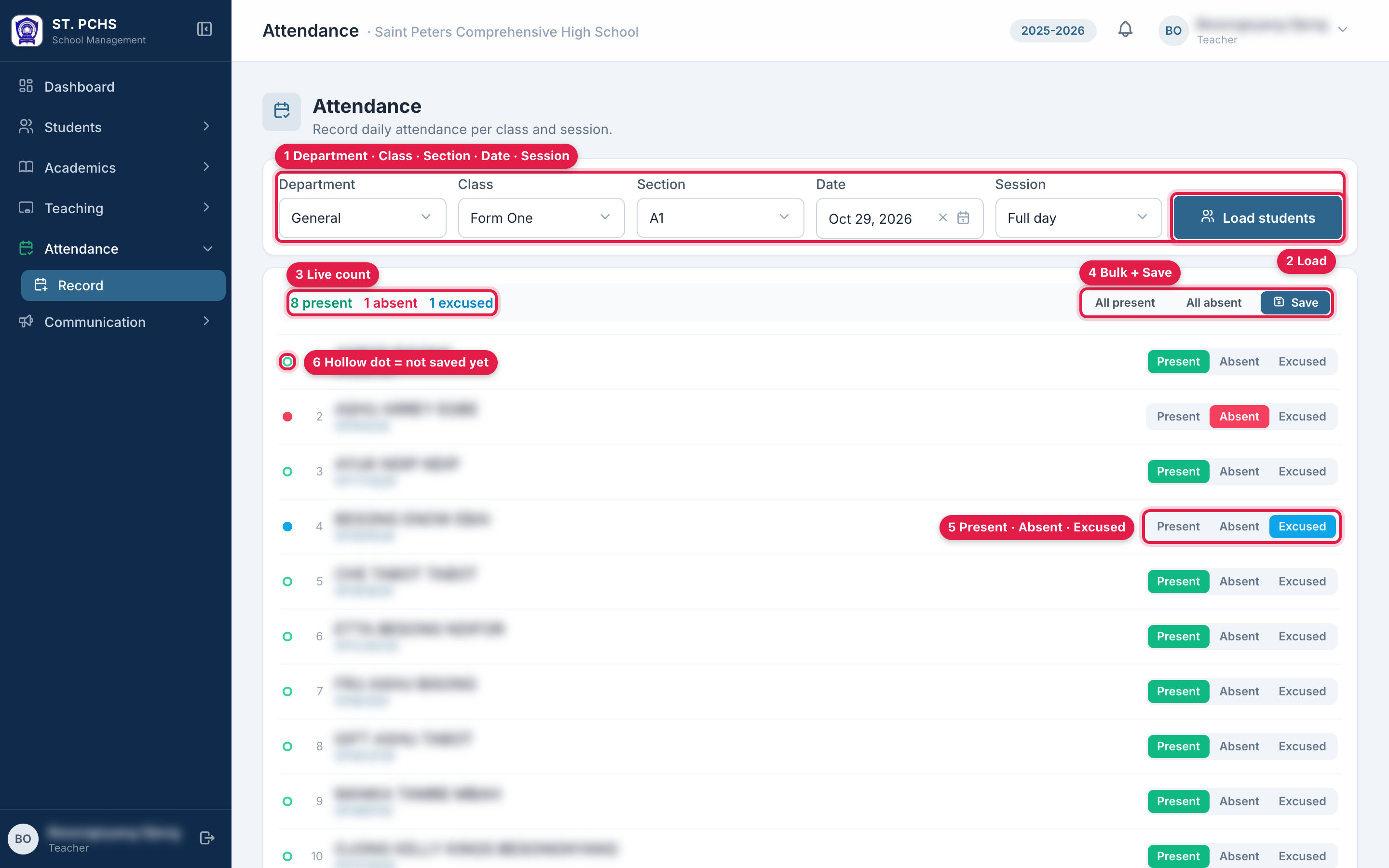
Menu: Attendance > Record
- Choose Department, Class, Section, Date and Session.
- The date can be today or any past day. Future dates are refused.
- Session is Full day, Morning or Afternoon.
- Click Load students. Everyone starts as Present.
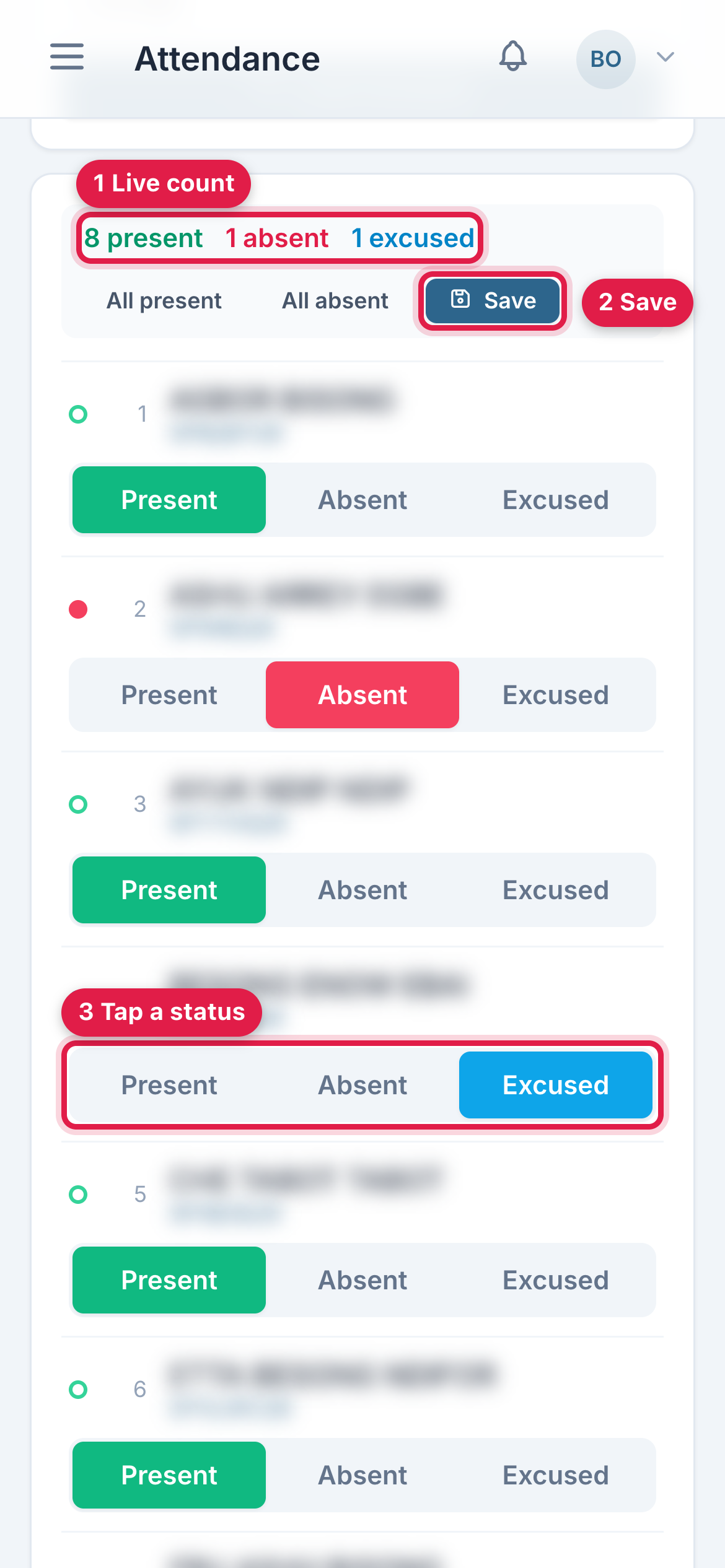
- For each student, tap Present, Absent or Excused.
- Absent = unjustified absence.
- Excused = justified absence (sick note, permission and so on).
- All present / All absent set the whole class at once.
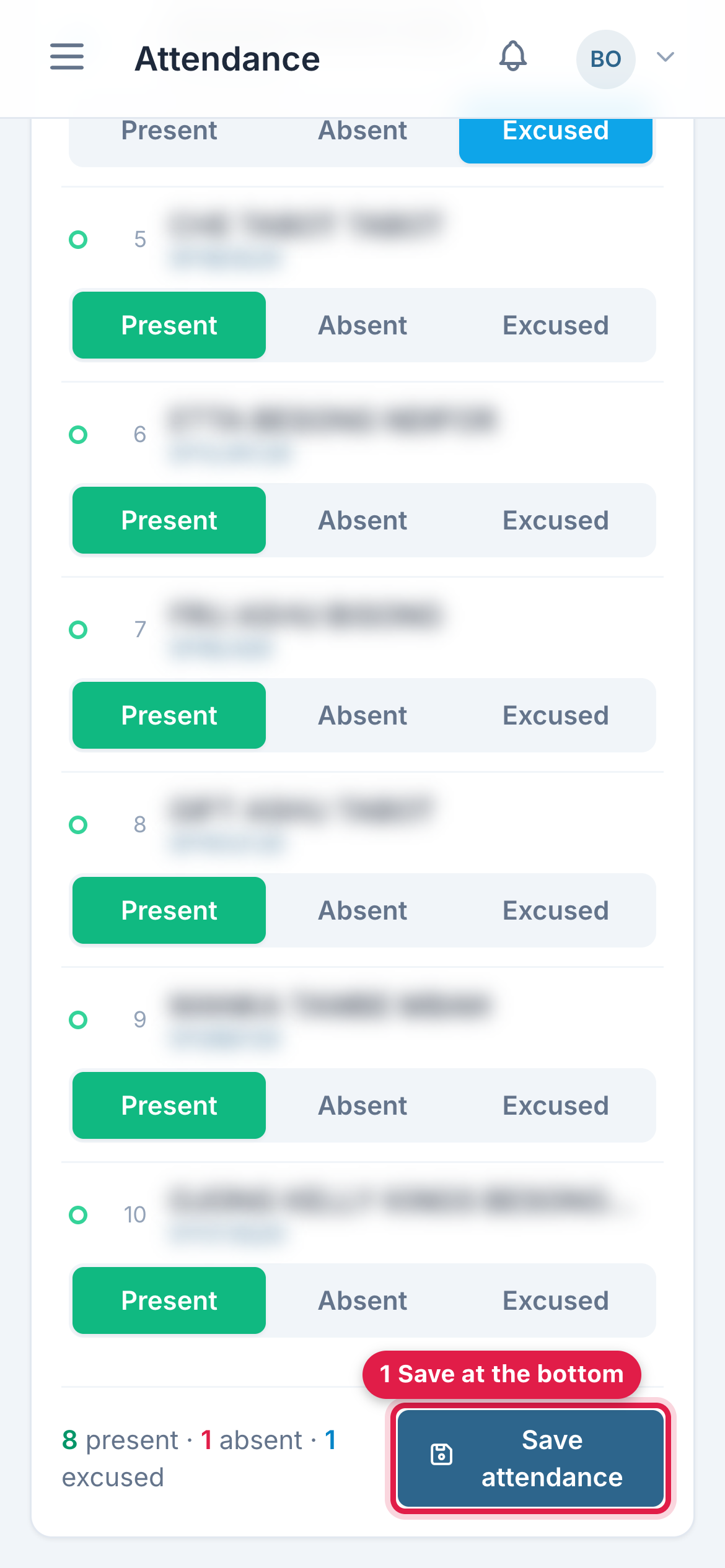
- Click Save (top) or Save attendance (bottom).
The counter at the top shows the totals live, e.g. "8 present · 1 absent · 1 excused".
The dot before each student shows the save state:
- Hollow ring - not saved yet (still the default, or not saved after a change).
- Filled dot - recorded. Green = present, red = absent, blue = excused.
To correct a day, load the same class, date and session again, change the status and save. The new status replaces the old one.
Full day and half days cannot be mixed
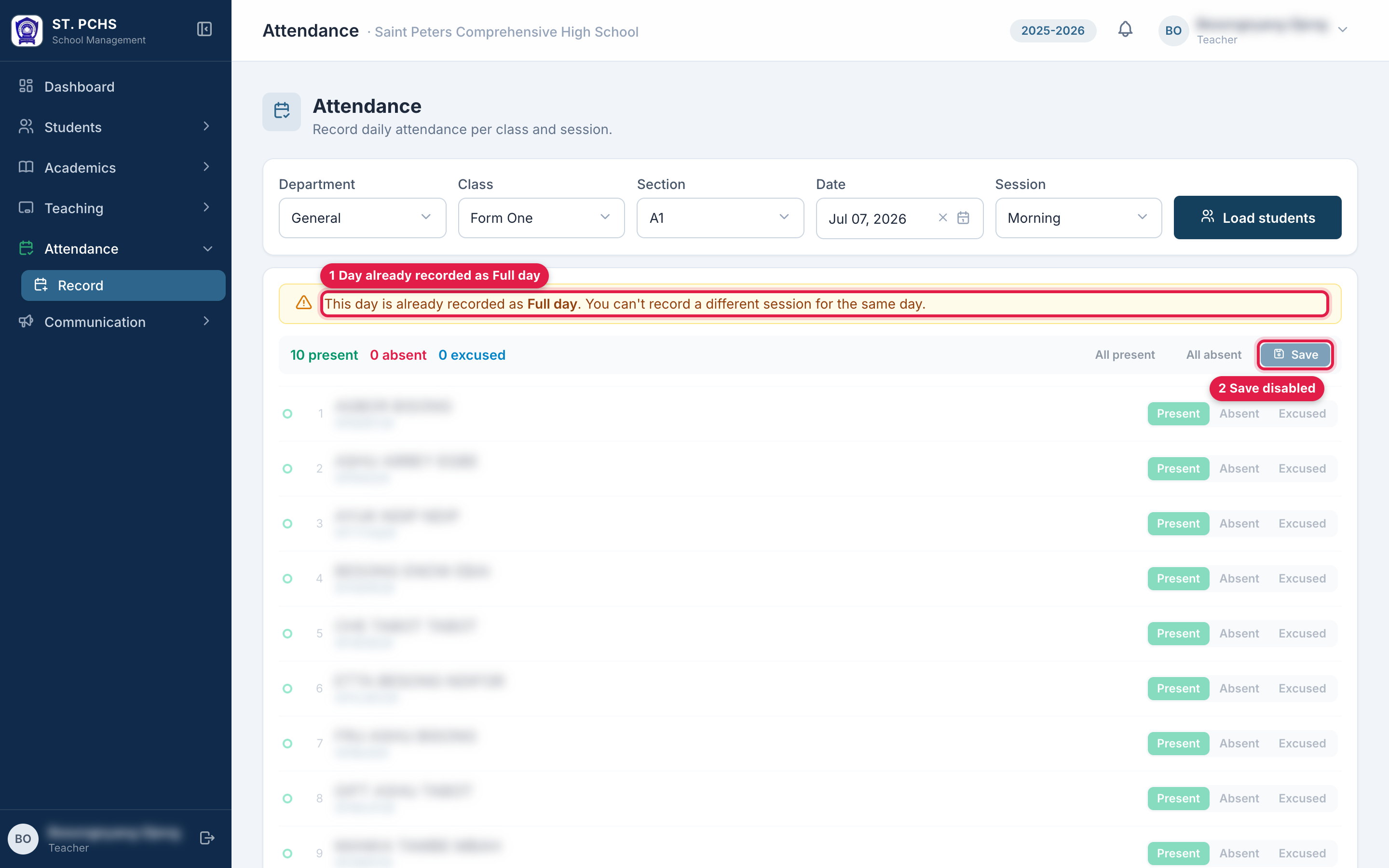
For one class and one day, attendance is recorded either as Full day or as Morning and/or Afternoon. If the day already has a Full day record and you load Morning (or the other way round), a warning appears and saving is disabled. Morning and Afternoon on the same day are fine together.
On a phone
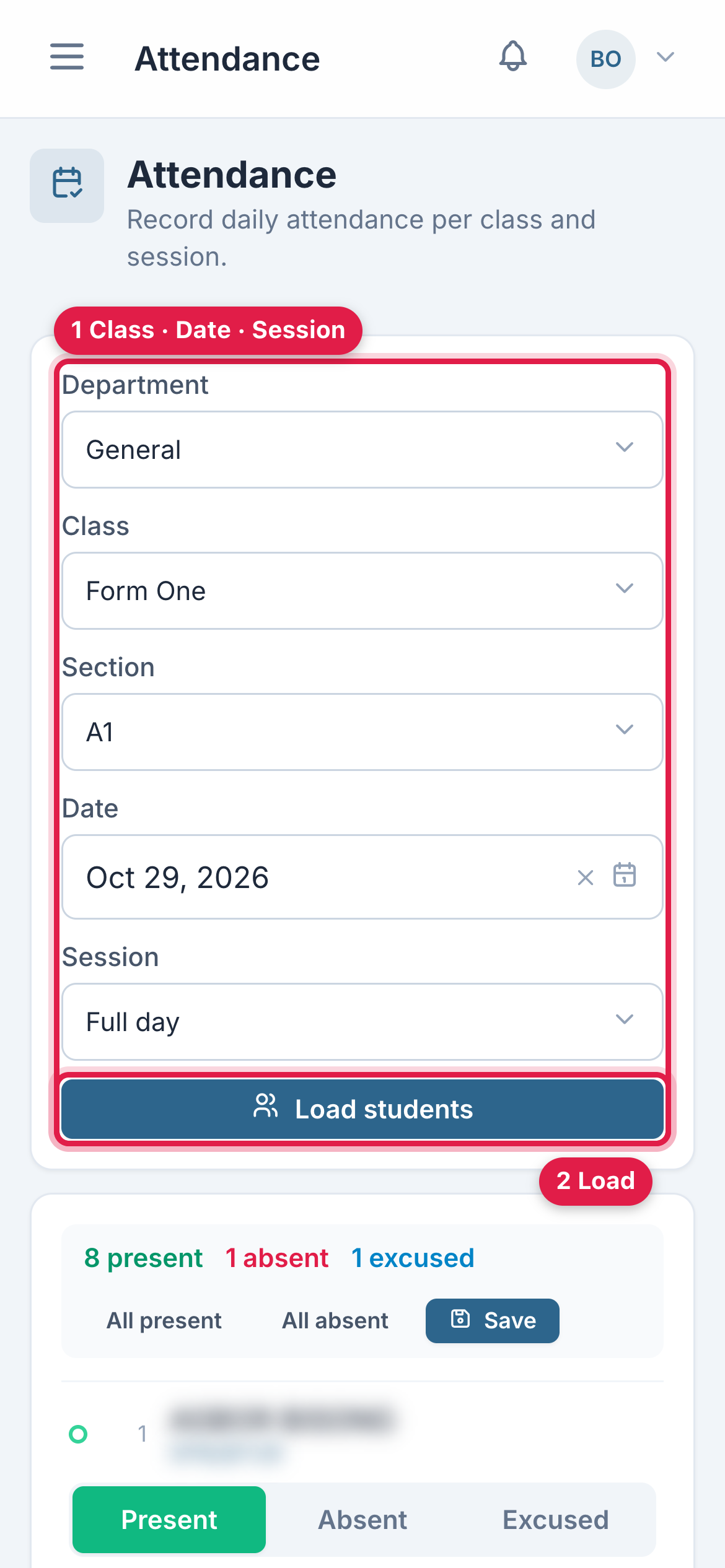
Attendance works in the phone browser. Open the menu (☰), then Attendance > Record.
- The filters are stacked; scroll down after Load students.
- Each student shows the name first, with Present · Absent · Excused as large buttons underneath.
- Save sits under the counter at the top, and Save attendance at the bottom of the list.
Tap Save before leaving the page or locking the phone. Unsaved changes are lost.
Month overview
Who: Admins.
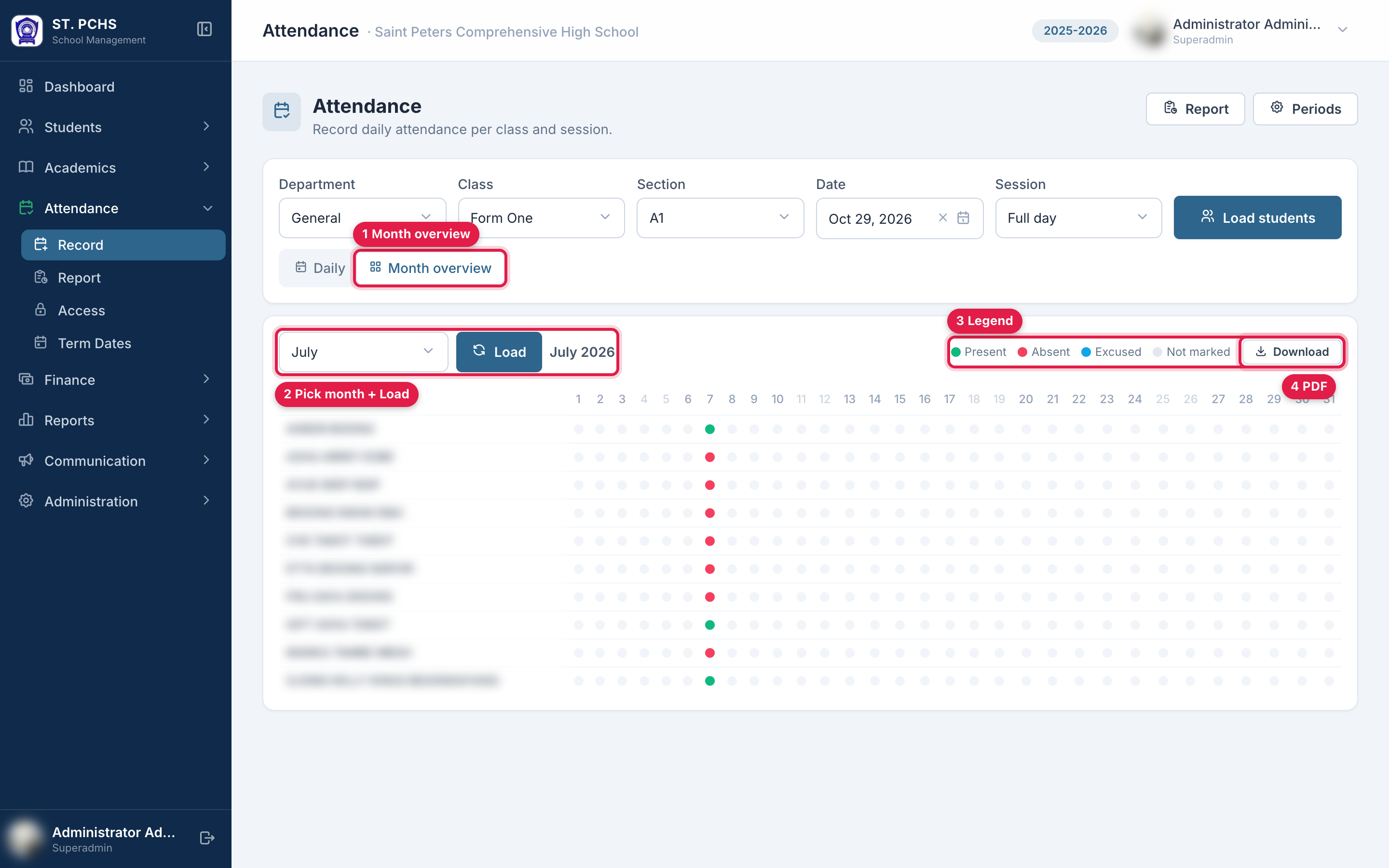
On Attendance > Record, choose the class and session, click Month overview, pick the month and click Load. Each student gets one row with a dot per day: green present, red absent, blue excused, grey not marked. Weekend day numbers are shown lighter. Download creates a PDF of the month with totals per student.
Periods settings
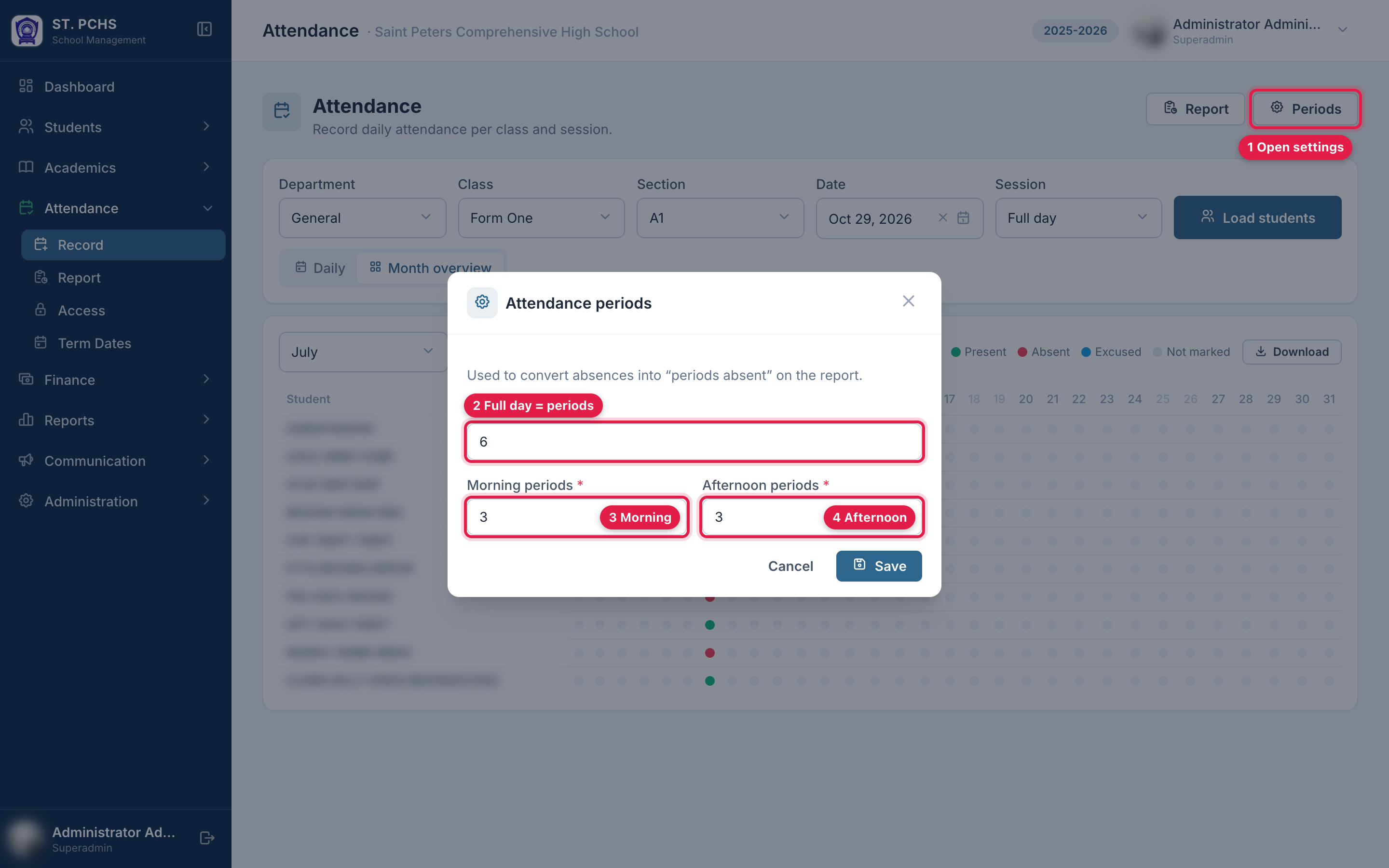
Who: Admins. Where: Attendance > Record > Periods (top right).
Periods convert absences into hours ("periods absent") on the report and on report cards.
| Field | Default | Meaning |
|---|---|---|
| Periods per day | 6 | What one Full day absence counts for |
| Morning periods | 3 | What one Morning absence counts for |
| Afternoon periods | 3 | What one Afternoon absence counts for |
Example: a student absent one full day and one morning = 6 + 3 = 9 periods absent. The settings apply to the whole school for the current year. Changing them also changes the figures for absences already recorded.
Attendance report
Menu: Attendance > Report. Who: Admins.
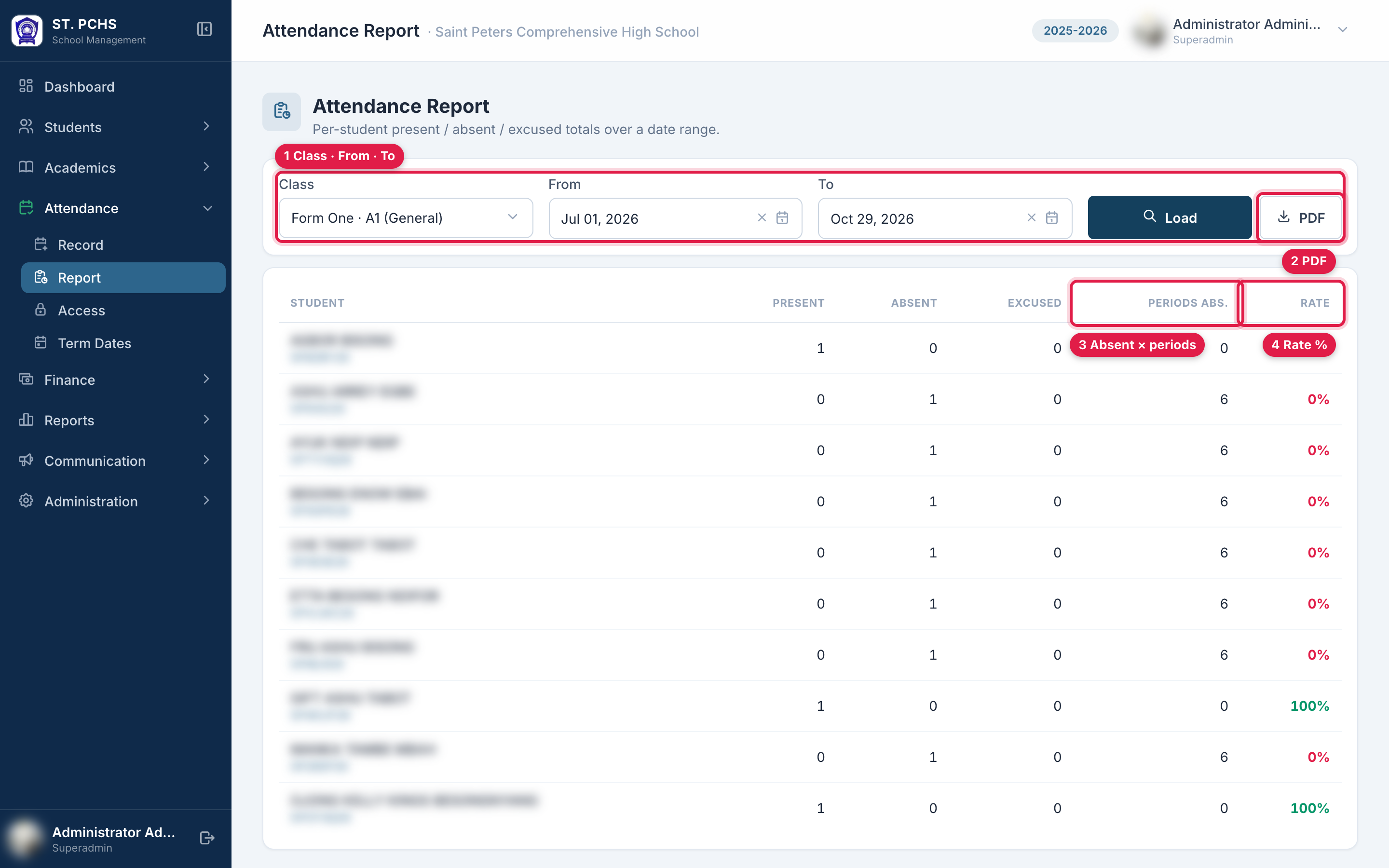
Choose a Class, From and To date, then click Load. PDF downloads the same table.
| Column | Meaning |
|---|---|
| Present / Absent / Excused | Number of sessions recorded with that status |
| Periods Abs. | Absent sessions × periods (see Periods). Excused is not counted here. |
| Rate | Present ÷ (Present + Absent). Excused is left out, so a justified absence does not lower the rate. Green ≥ 80%, amber ≥ 50%, red below. |
Term dates
Menu: Attendance > Term Dates. Who: Admins.
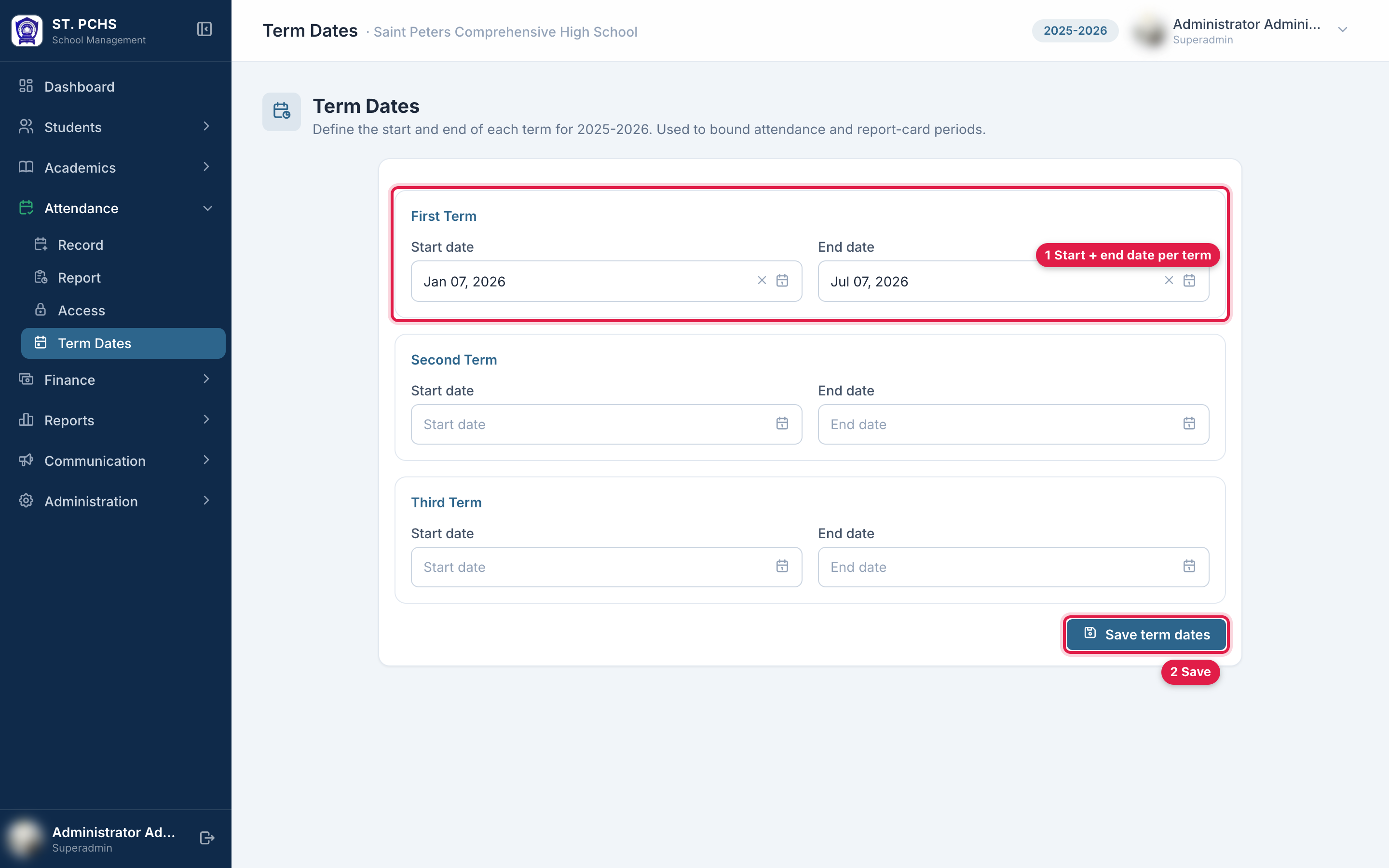
Enter a start and end date for each of the three terms and click Save term dates. A term needs both dates. Clear both to remove it.
Term dates decide which absences appear on report cards:
- A term report card counts absences between that term's start and end date.
- An annual report card counts from the first term's start to the last term's end.
- Sequence report cards, and any card whose term has no dates, leave the absence boxes blank so they can be filled by hand.
How attendance reaches the report card
| Recorded as | On the report card |
|---|---|
| Absent | Unjustified absence, in periods (hours) |
| Excused | Justified absence, in periods (hours) |
| Present | Not shown |
Common problems
| Message or symptom | Cause | Solution |
|---|---|---|
| Attendance menu is missing | No access to any class this year | Ask an admin to grant access (Attendance > Access) |
| "Could not load students (check your access to this class)" | Access was granted for other classes only | Ask an admin to add this class |
| "This day is already recorded as Full day…" | Mixing Full day and Morning/Afternoon on one day | Use the session already recorded |
| Absence boxes on report cards are blank | No term dates, or a sequence card | Set term dates |
| Date cannot be picked | Future date | Attendance can only be recorded for today or earlier |